


This project is a Forgejo-focused fork of Gitea GitHub Theme. It retains the upstream theme engine and design system while adapting styles and templates to Forgejo's native markup.
The standard bun bundle command generates all themes in dist; generated CSS remains excluded from Git. The included
templates are version-bound and should not be installed on another Forgejo release without reviewing its routes and
template data.
Releases are not tied to a Forgejo version number. Each release states the supported Forgejo major version and the exact Forgejo version used for testing in its release notes.
This project is licensed under the Apache License 2.0. See LICENSE and NOTICE for the upstream copyright and attribution information.
Important
Because the project uses new CSS features, ensure styles are applied correctly by keeping Chrome/Edge >= 120, Firefox >= 121, Safari >= 16.5
Choose one of the following ways to obtain the assets:
- Download the packaged archives from the latest release.
- Run the Development Build workflow manually and download its artifact.
- Build the assets locally with the commands in Using the Development Version.
Install the resulting files using your Forgejo data directory (commonly data/gitea in the official container):
- Extract
theme-github-base.tar.gz, then place the contained*.cssfiles in<forgejo-data>/public/assets/css(create the directory if necessary). This archive contains the standard light, dark, auto, and soft-dark themes. - Optionally extract
theme-github-accessibility.tar.gzfor colorblind and high-contrast themes, ortheme-github-extras.tar.gzfor Pink, Gitea-compatible, and Catppuccin themes. Place their CSS files in the same<forgejo-data>/public/assets/cssdirectory. - Extract
theme-github-fonts.tar.gzinto<forgejo-data>/public. This supplies the Mona Sans variable font; its SIL Open Font License is included beside the font. - Extract the optional
theme-github-templates.tar.gzarchive into<forgejo-data>. It includes the templates and their required JavaScript and page-specific CSS assets underpublic/assets. - Modify
<forgejo-data>/conf/app.iniand append the CSS filename without thetheme-prefix toTHEMESunder the[ui]section. - Restart Forgejo.
- Select the theme in the Forgejo settings.
Example: If the theme filename is theme-github-dark.css, add github-dark to the end of THEMES
Example <forgejo-data>/conf/app.ini:
[ui]
THEMES = gitea-auto, gitea-light, gitea-dark, github-auto, github-light, github-dark, github-soft-dark
Tip
When THEMES is not set, Forgejo will use all themes
Important
Automatic color theme requires both light and dark theme files.
For details, refer to the Forgejo documentation.
Important
The template modifies Forgejo's layout to make it closer to GitHub's layout. Do not use template files across versions, as this may lead to missing functionality, Forgejo failing to start, and other issues.
Template layout is bound to the Forgejo instance and will affect all themes, impacting the experience of other non-project themes.
- Download the latest template archive from the release page and extract it into
<forgejo-data>. - Restart Forgejo
THEMES = github-auto, github-light, github-dark, github-soft-dark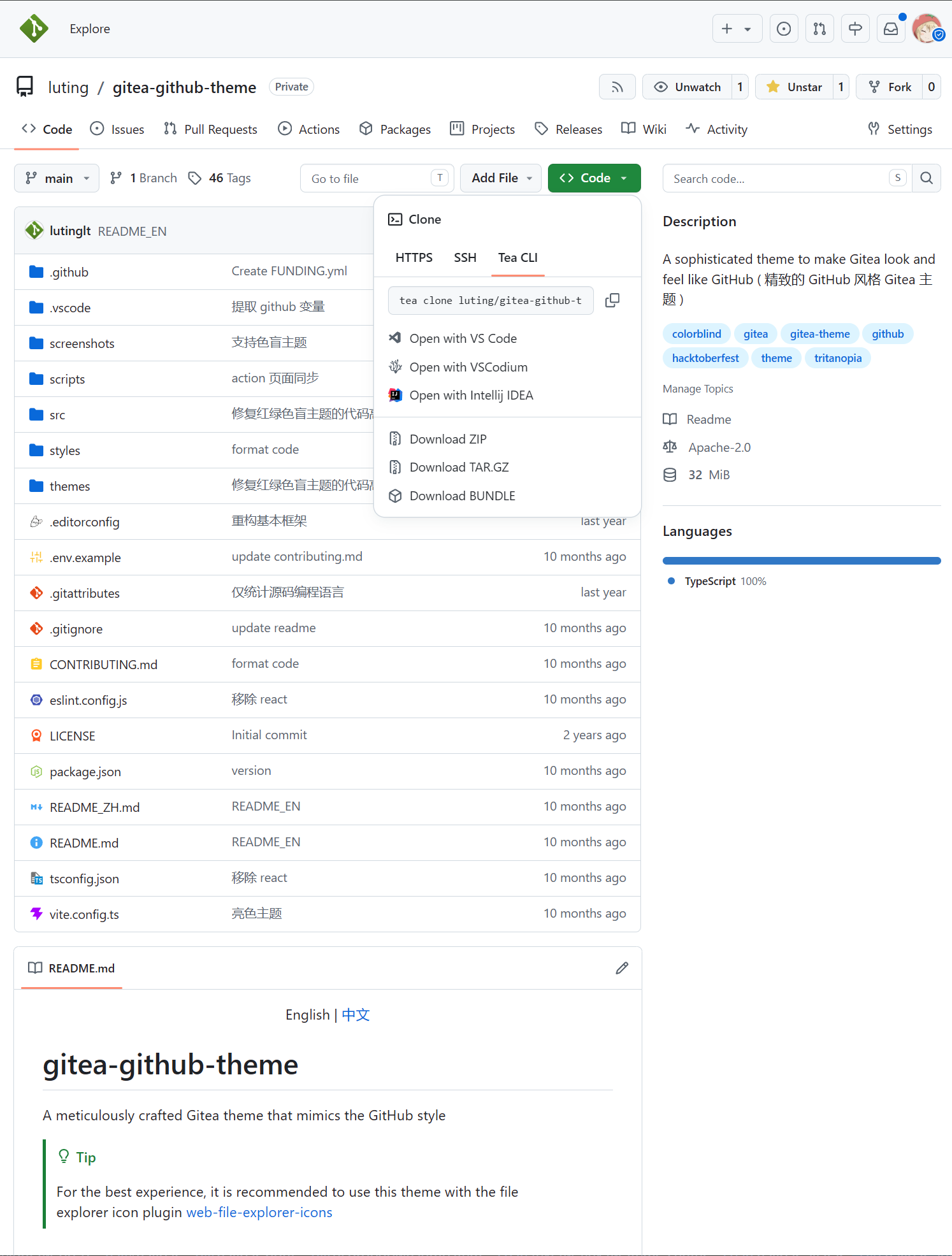
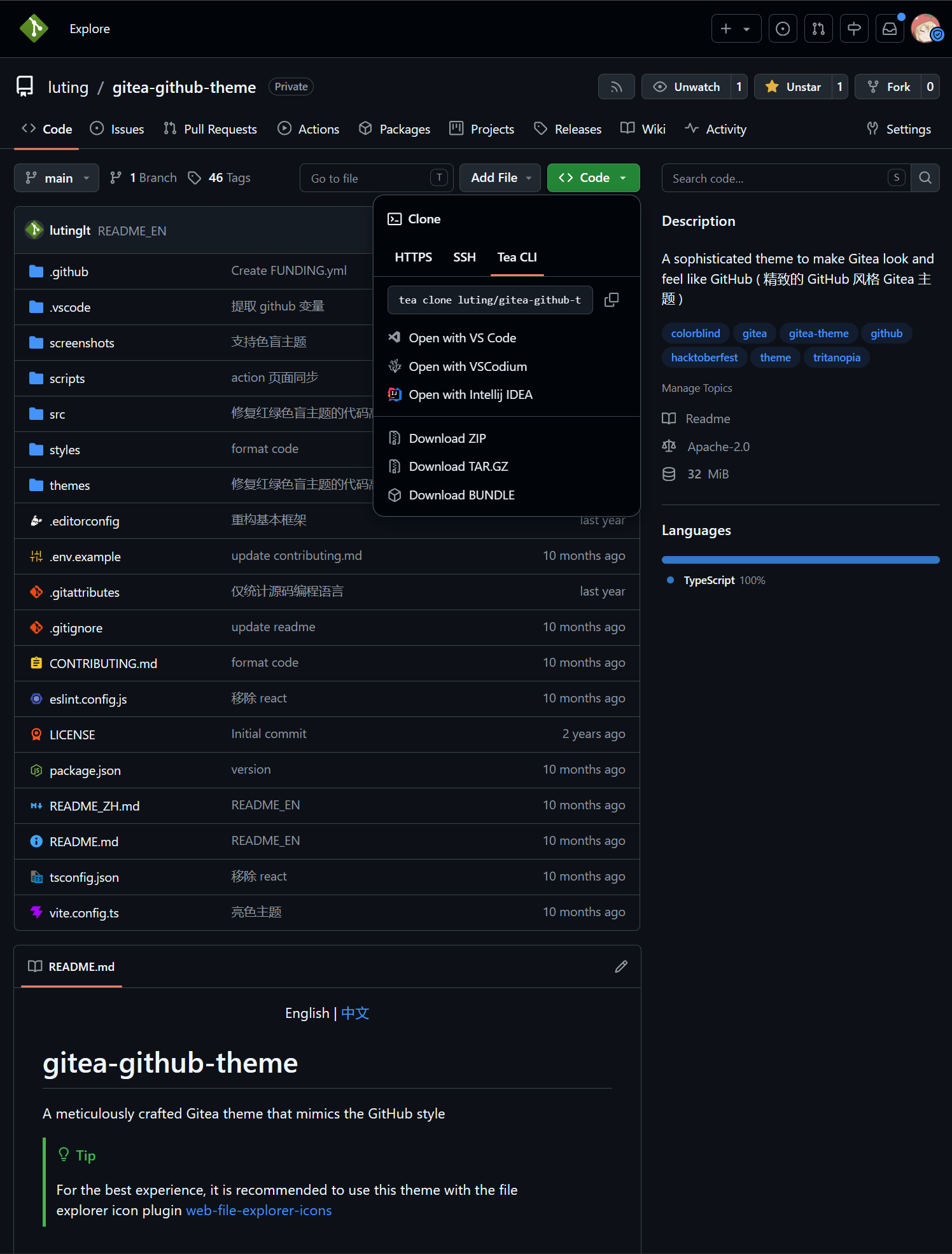
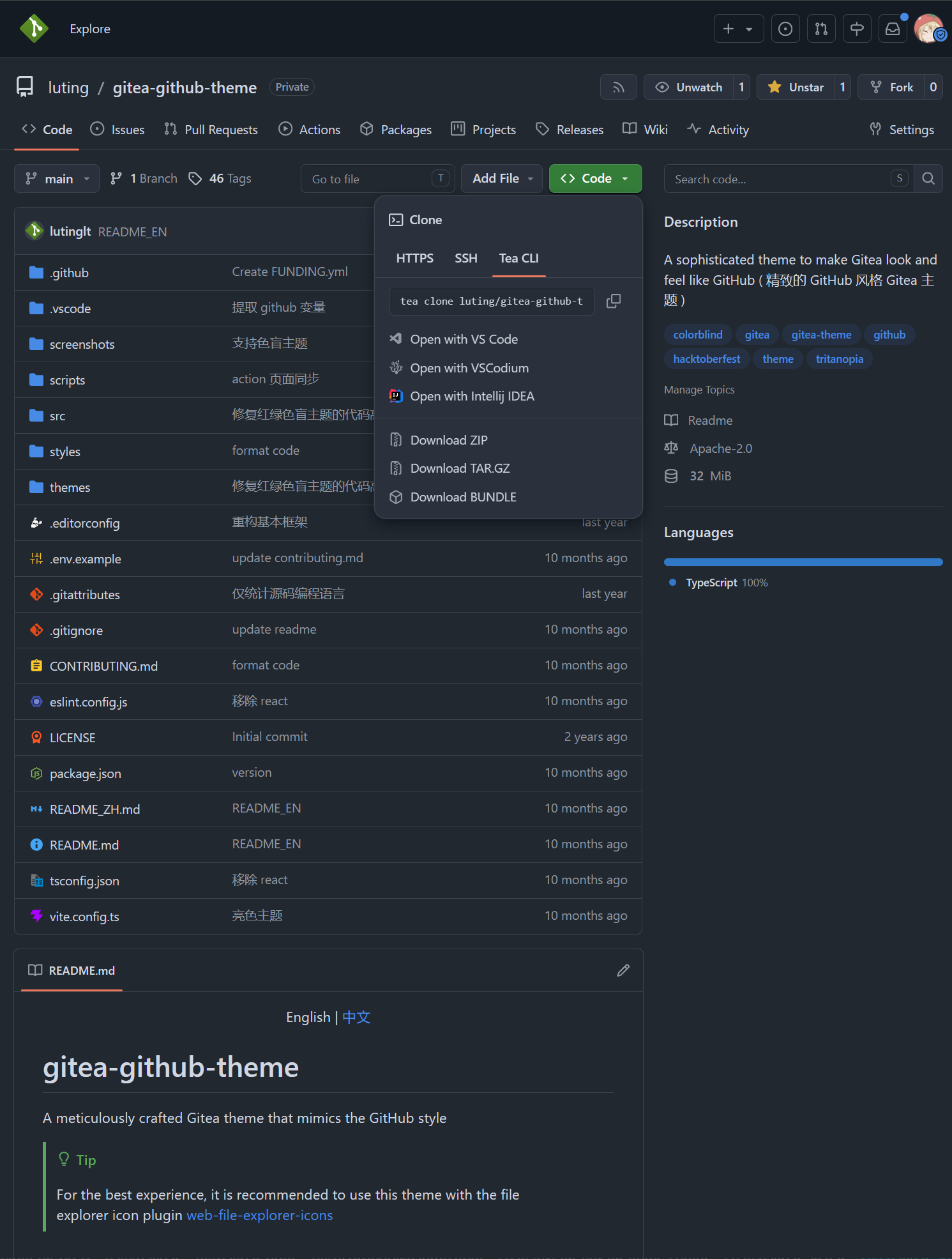
THEMES = github-colorblind-auto, github-colorblind-light, github-colorblind-dark
THEMES = github-tritanopia-auto, github-tritanopia-light, github-tritanopia-dark
Colorblind & Tritanopia
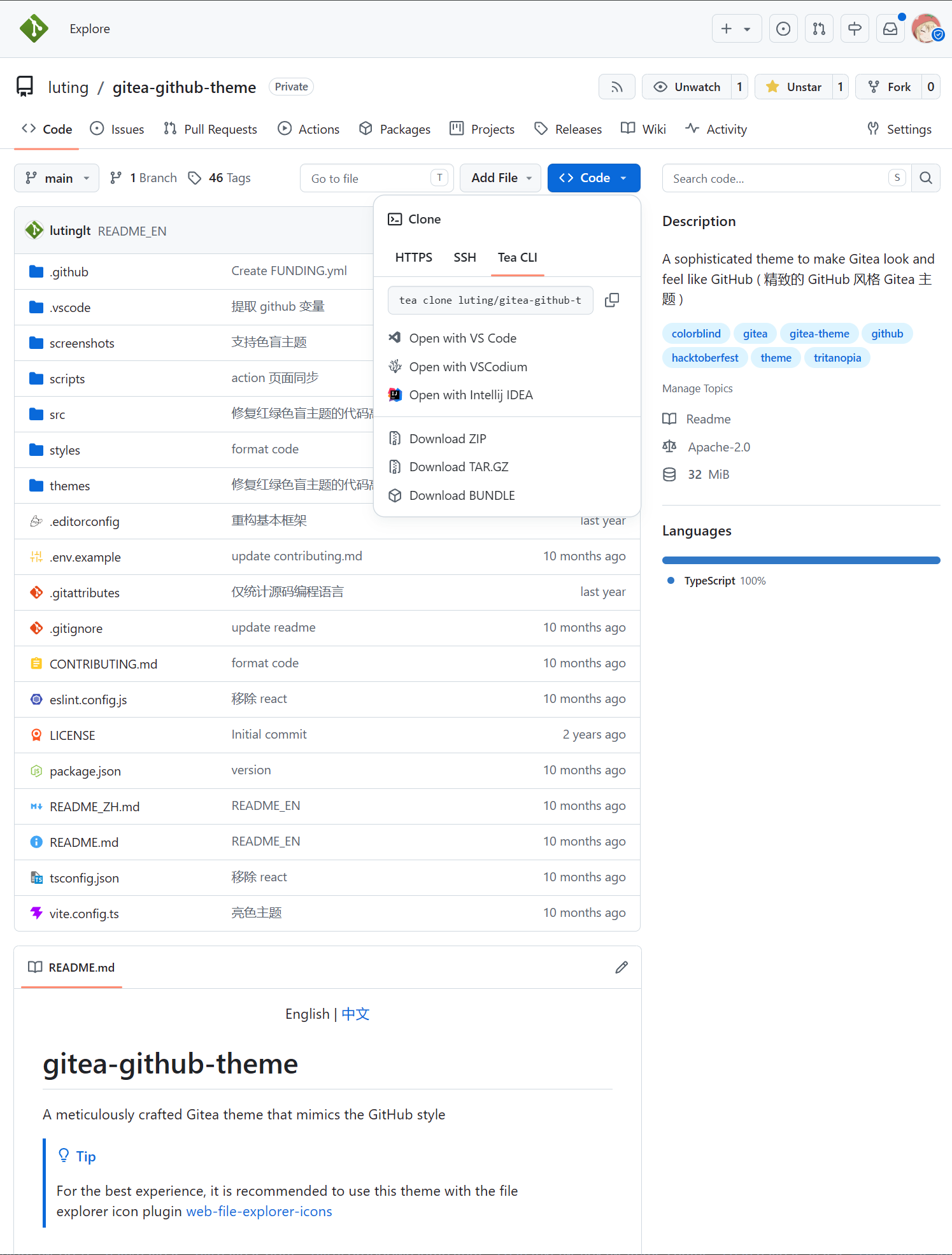
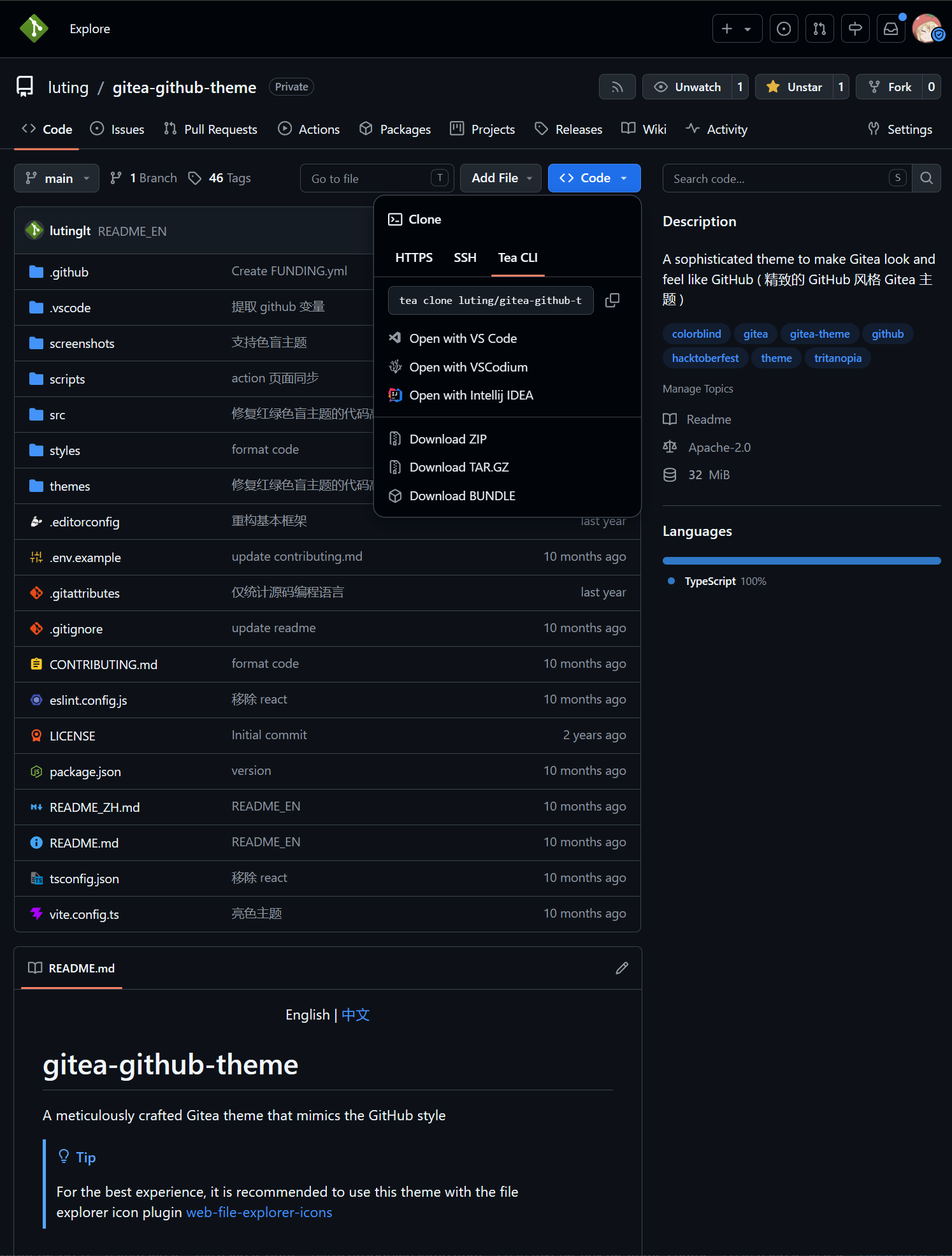
THEMES = github-high-contrast-auto, github-high-contrast-light, github-high-contrast-dark, github-high-contrast-soft-darkHighContrast
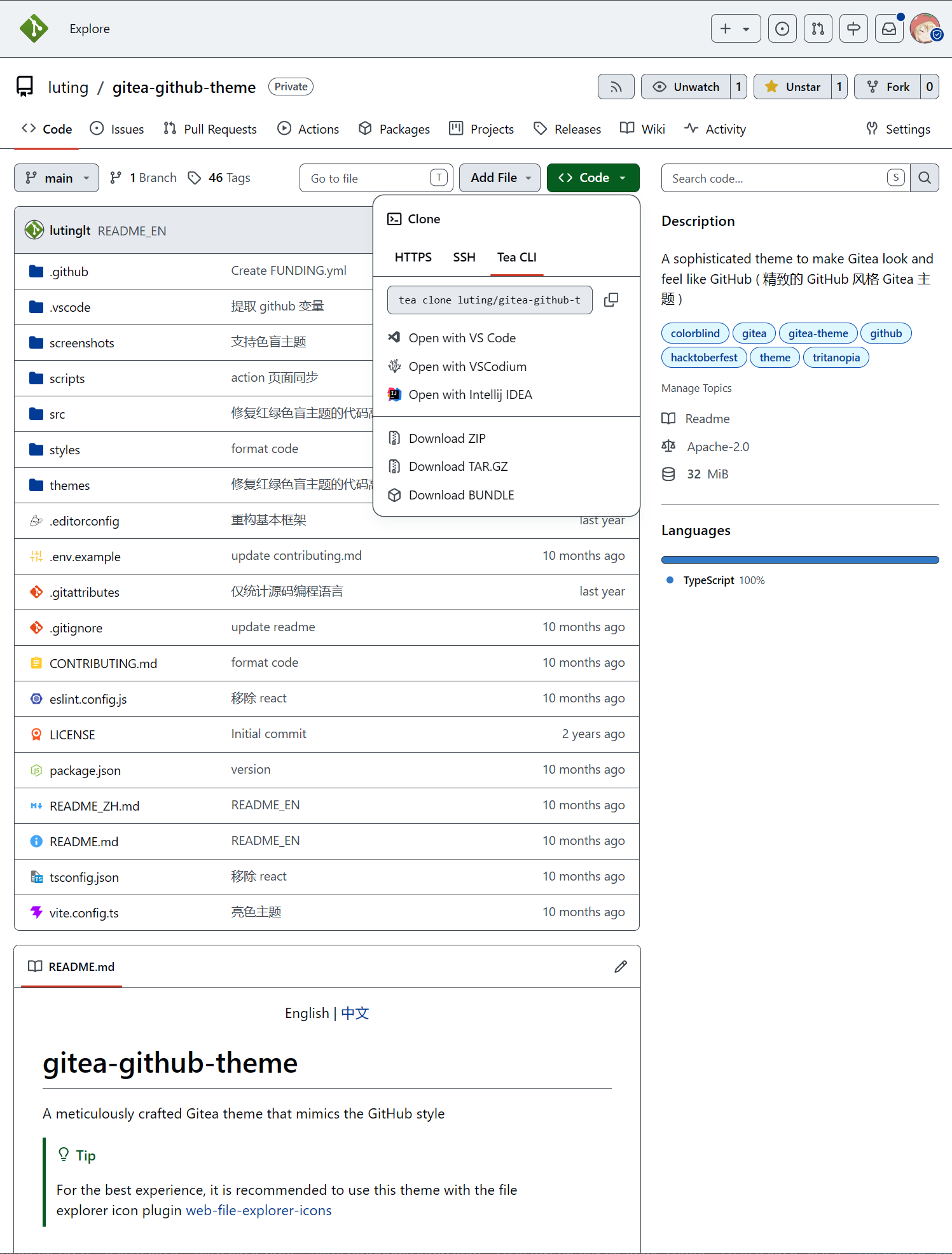
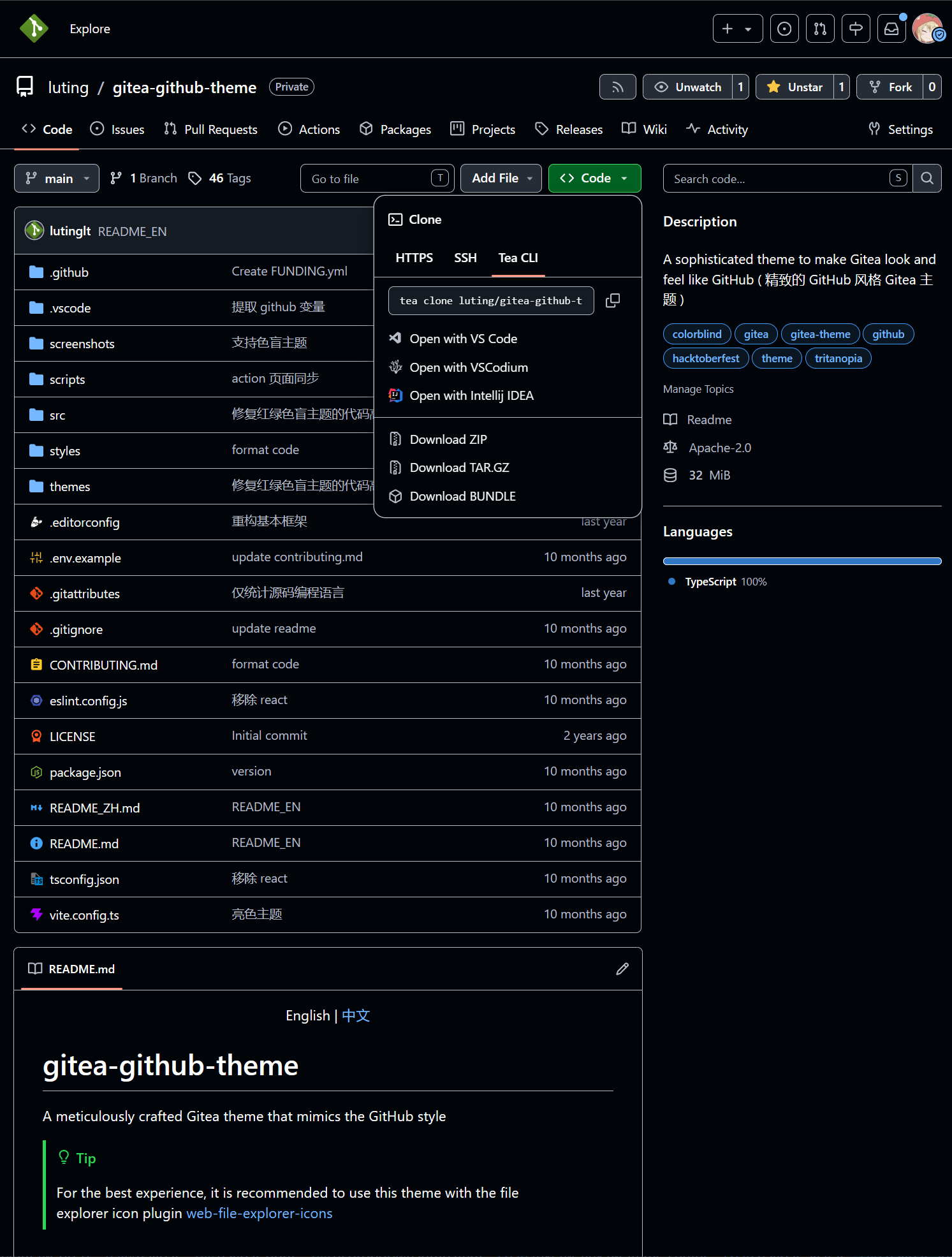
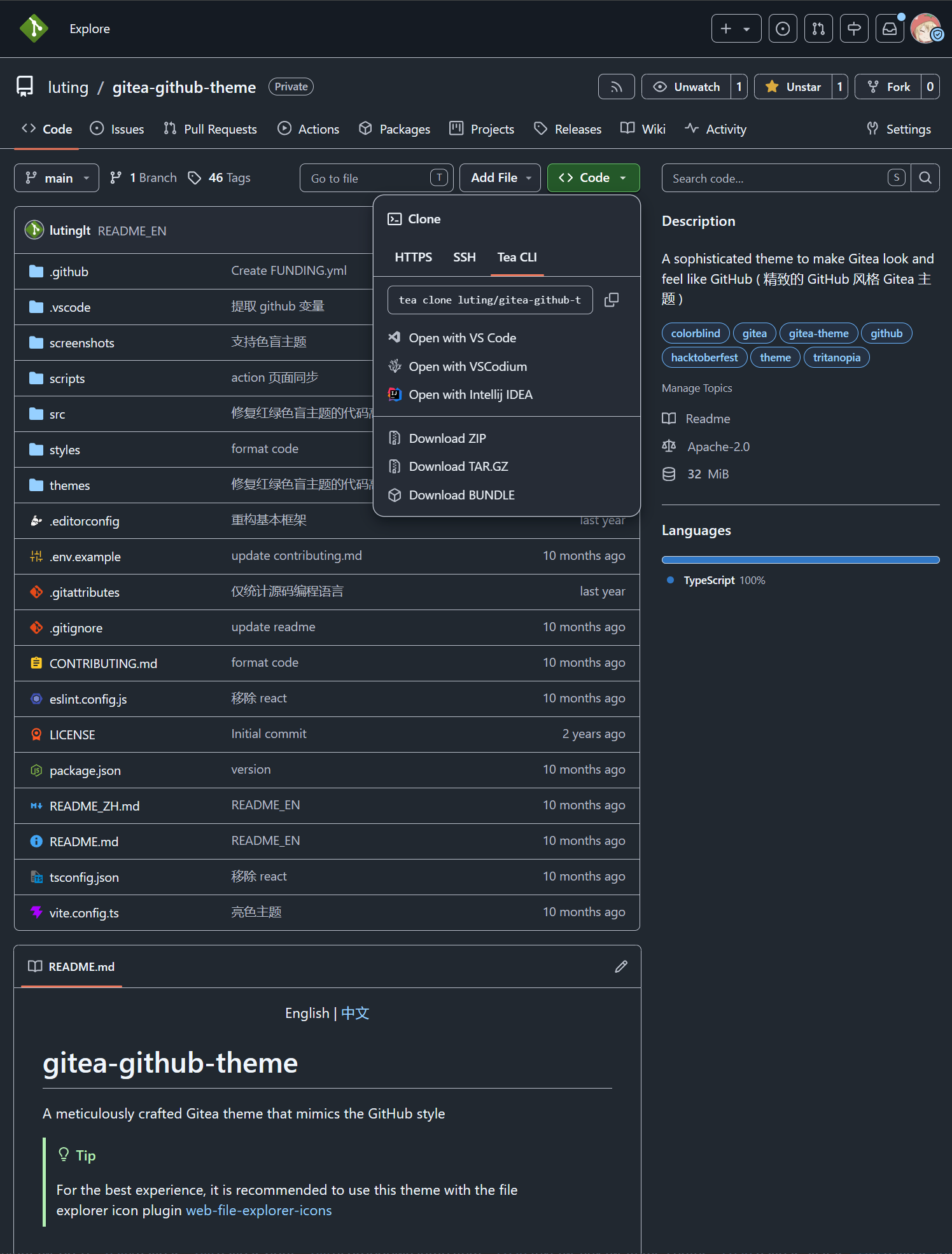
THEMES = github-high-contrast-colorblind-auto, github-high-contrast-colorblind-light, github-high-contrast-colorblind-dark
THEMES = github-high-contrast-tritanopia-auto, github-high-contrast-tritanopia-light, github-high-contrast-tritanopia-dark
HighContrast Colorblind & Tritanopia
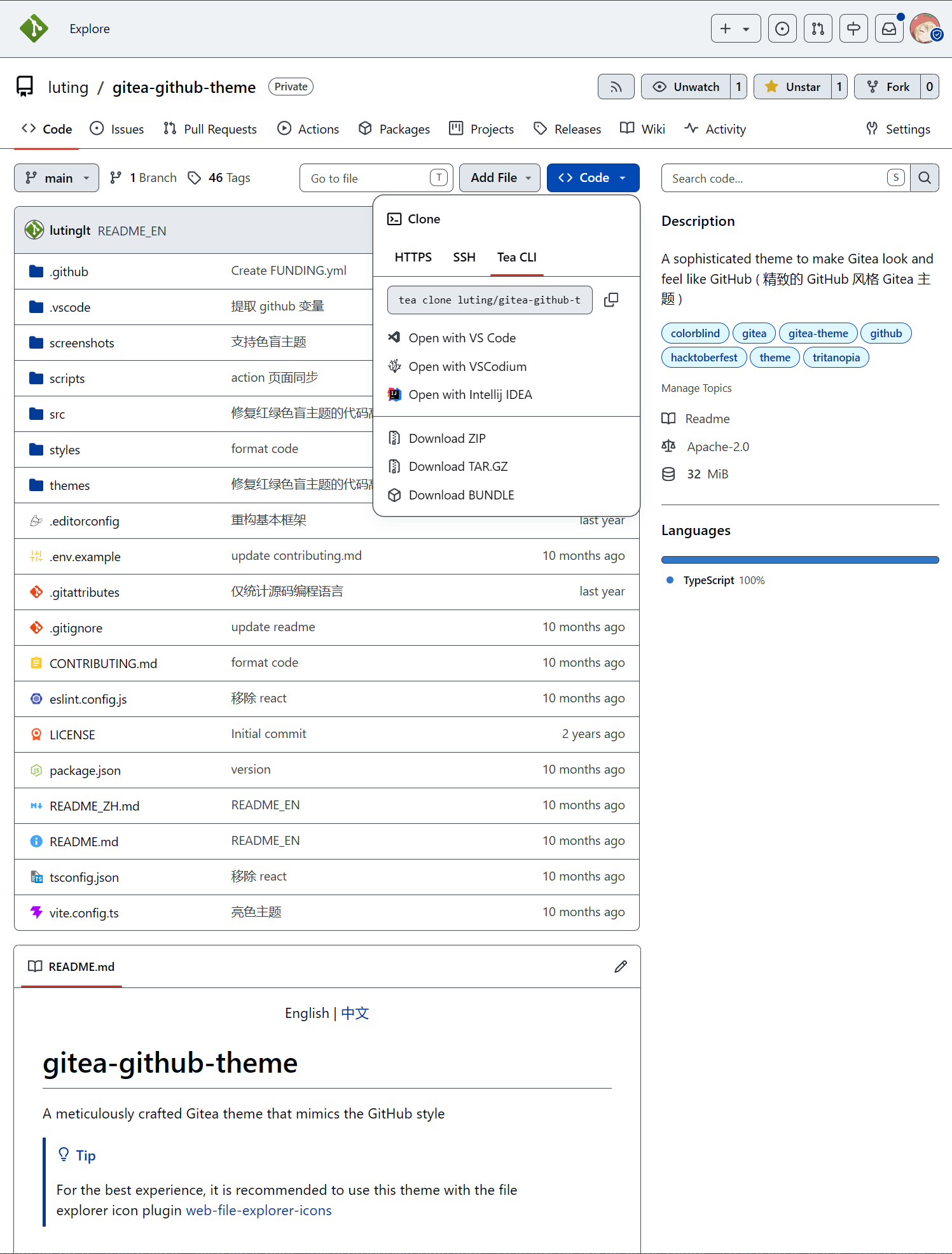
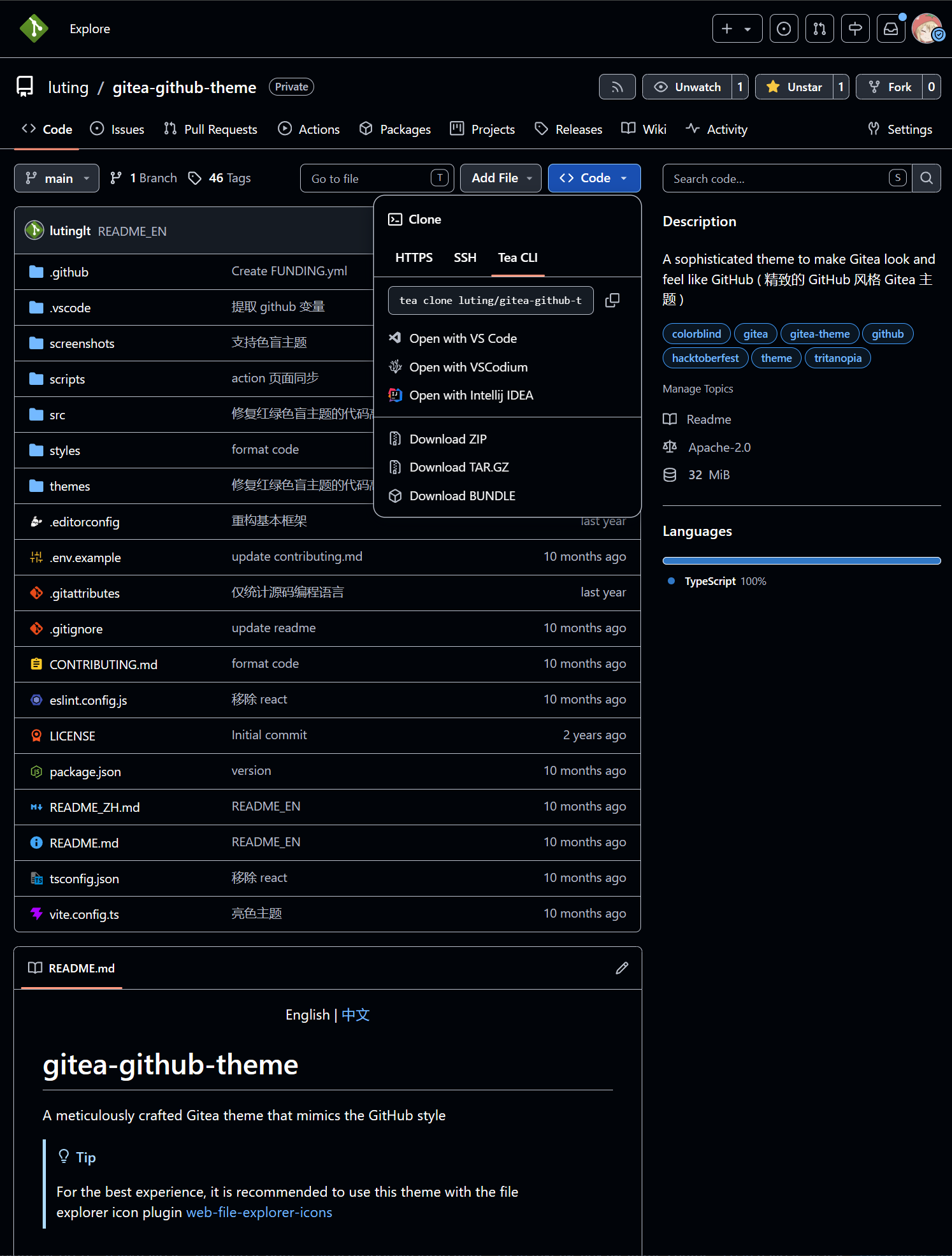
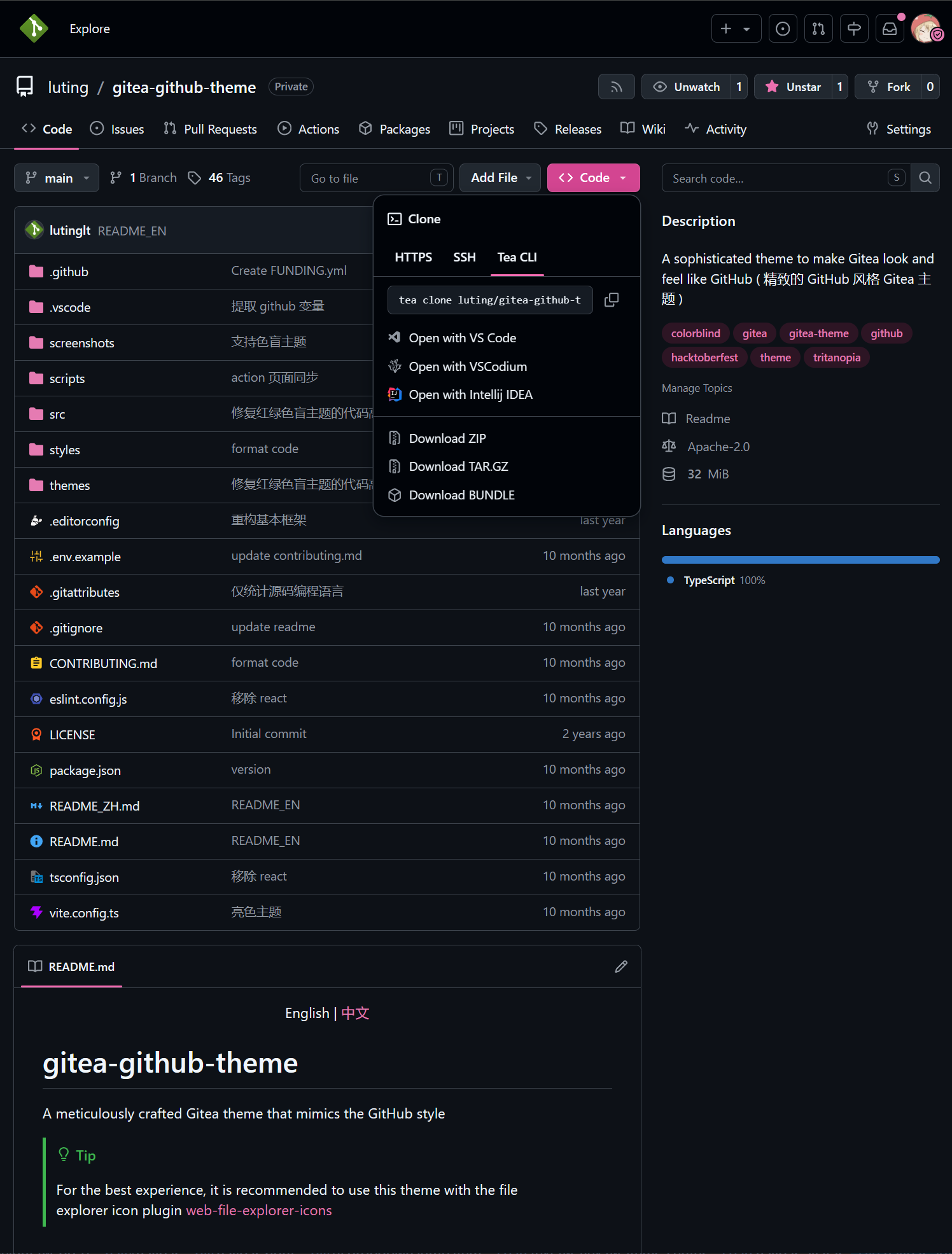
THEMES = github-pink-auto, github-pink-light, github-pink-dark, github-pink-soft-dark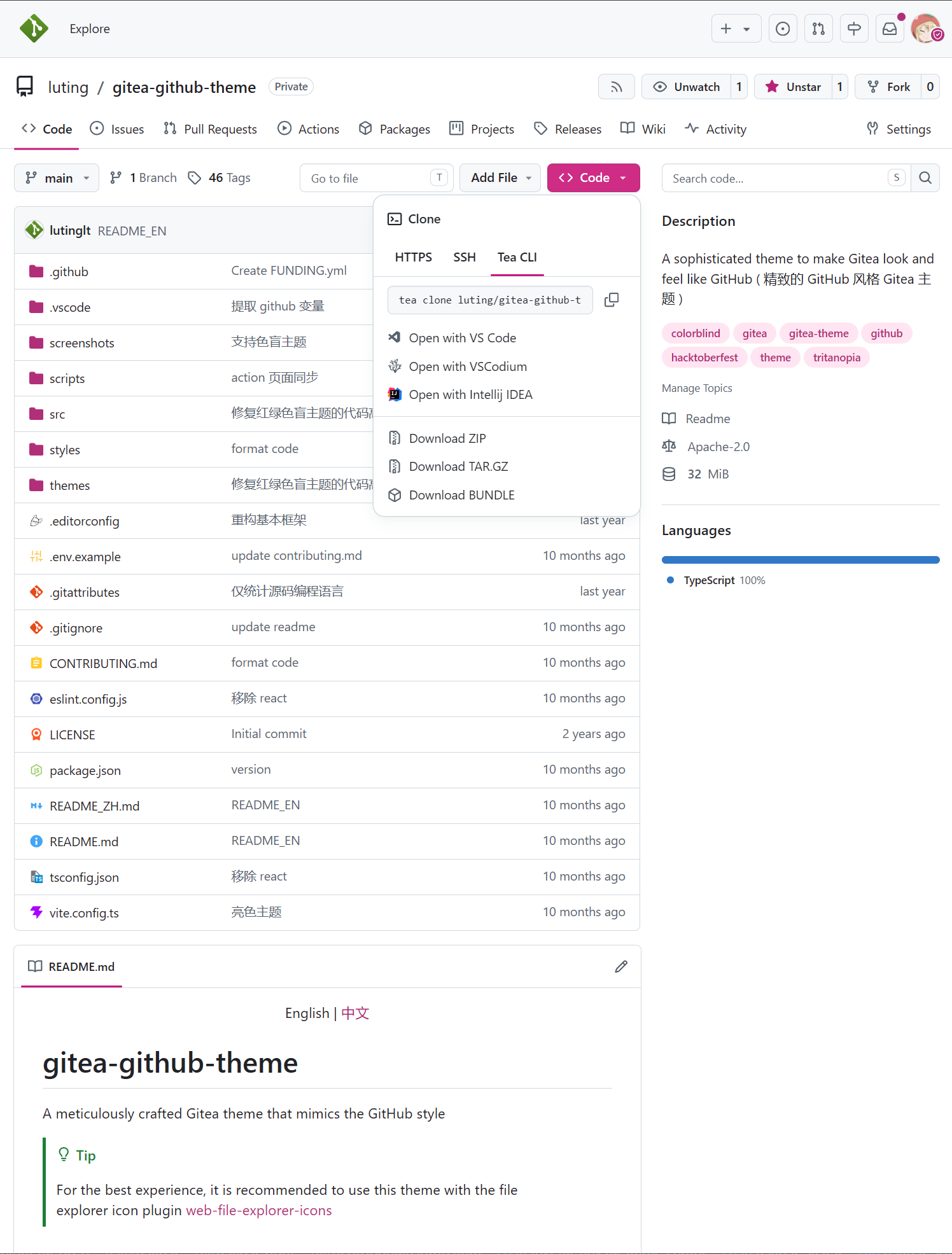
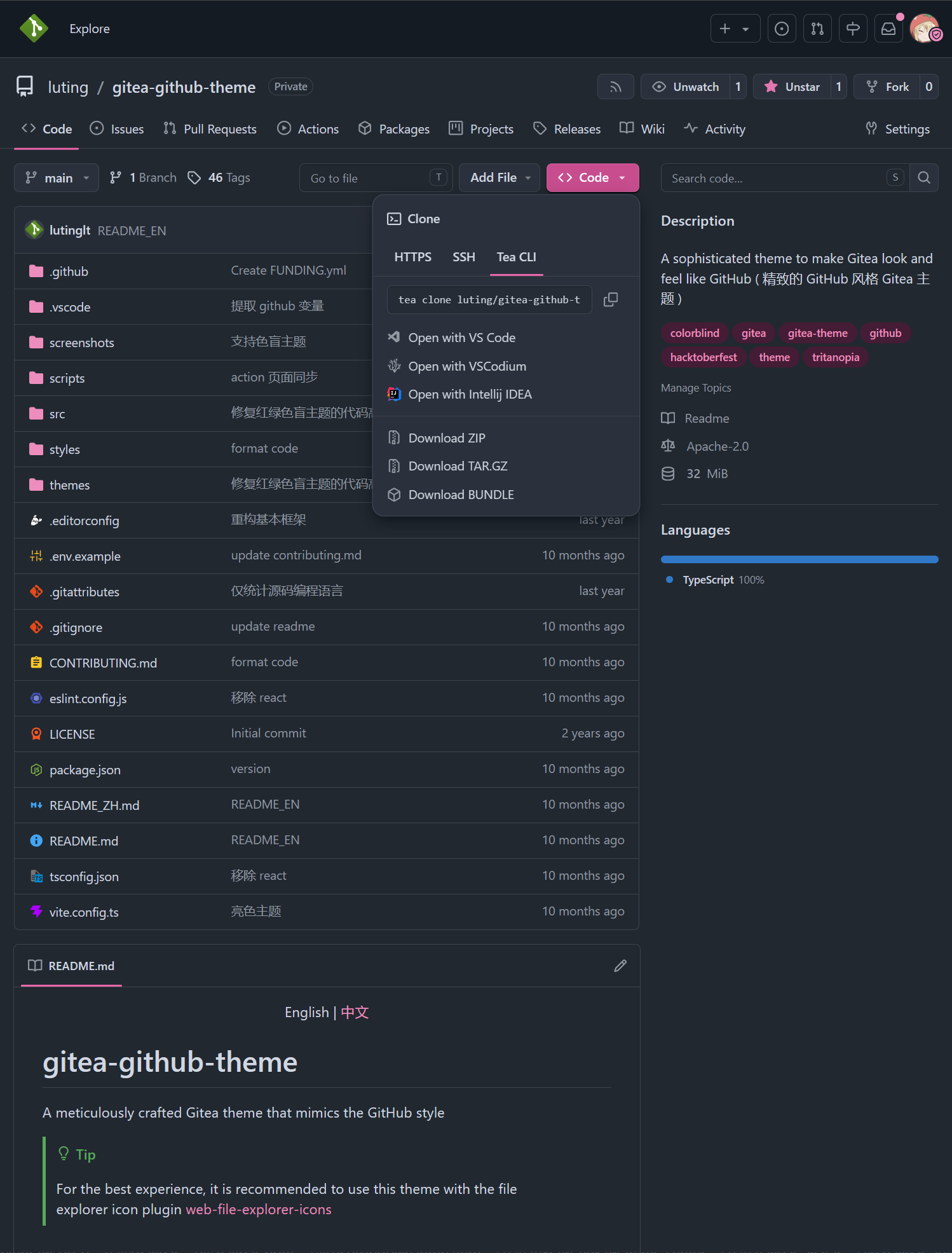
THEMES = github-gitea-auto, github-gitea-light, github-gitea-dark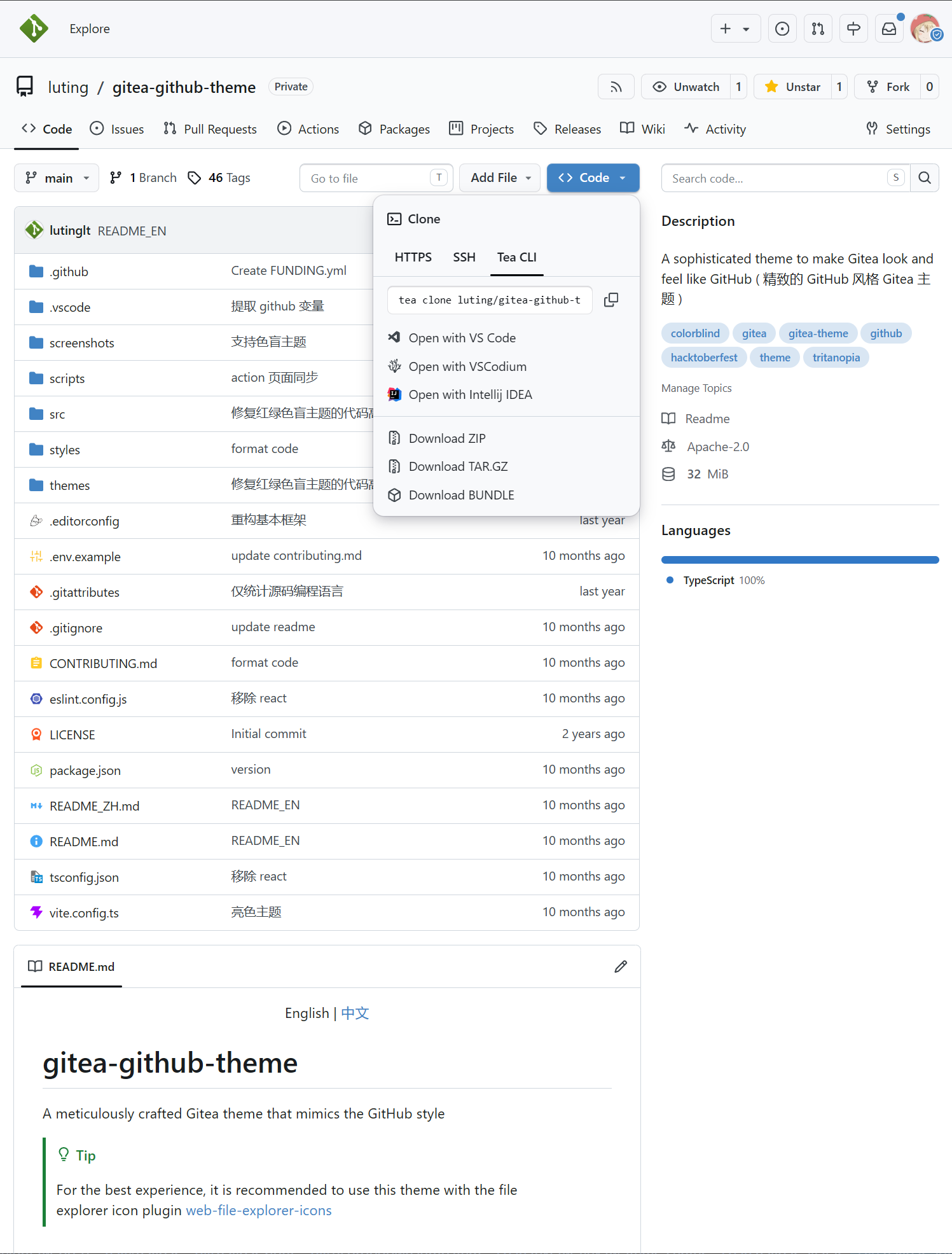
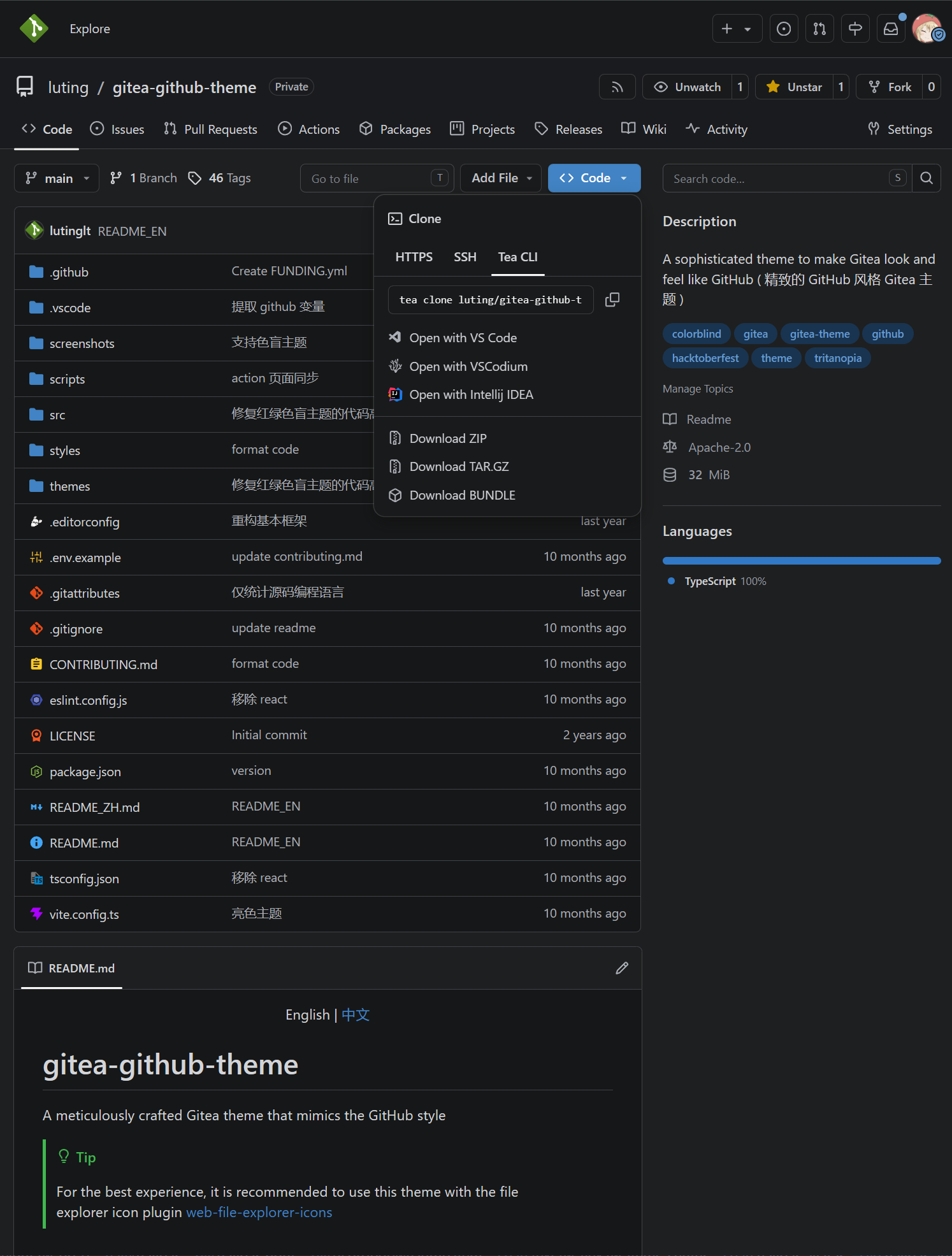
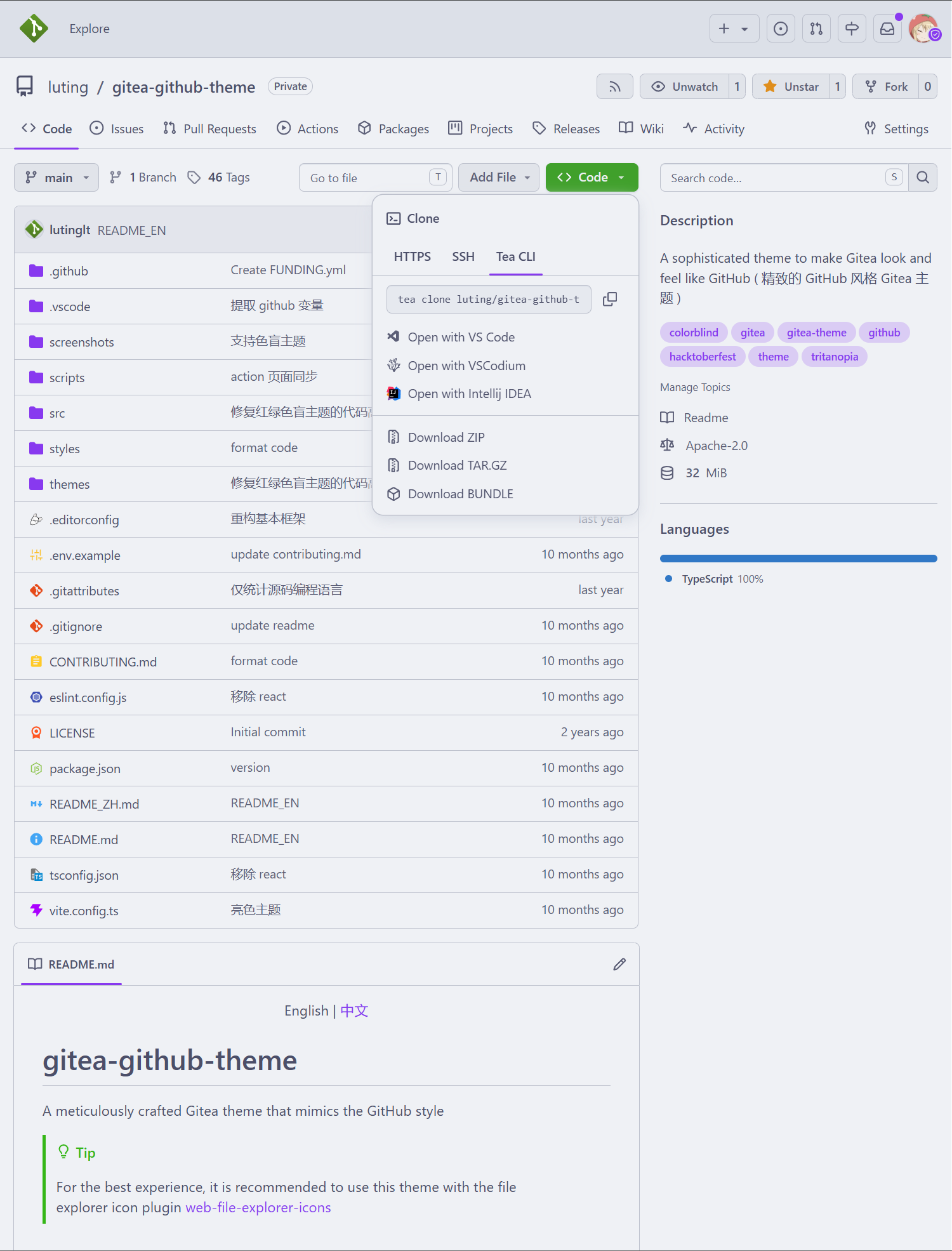
THEMES = github-catppuccin-auto, github-catppuccin-latte, github-catppuccin-frappe, github-catppuccin-macchiato, github-catppuccin-mochaCatppuccin
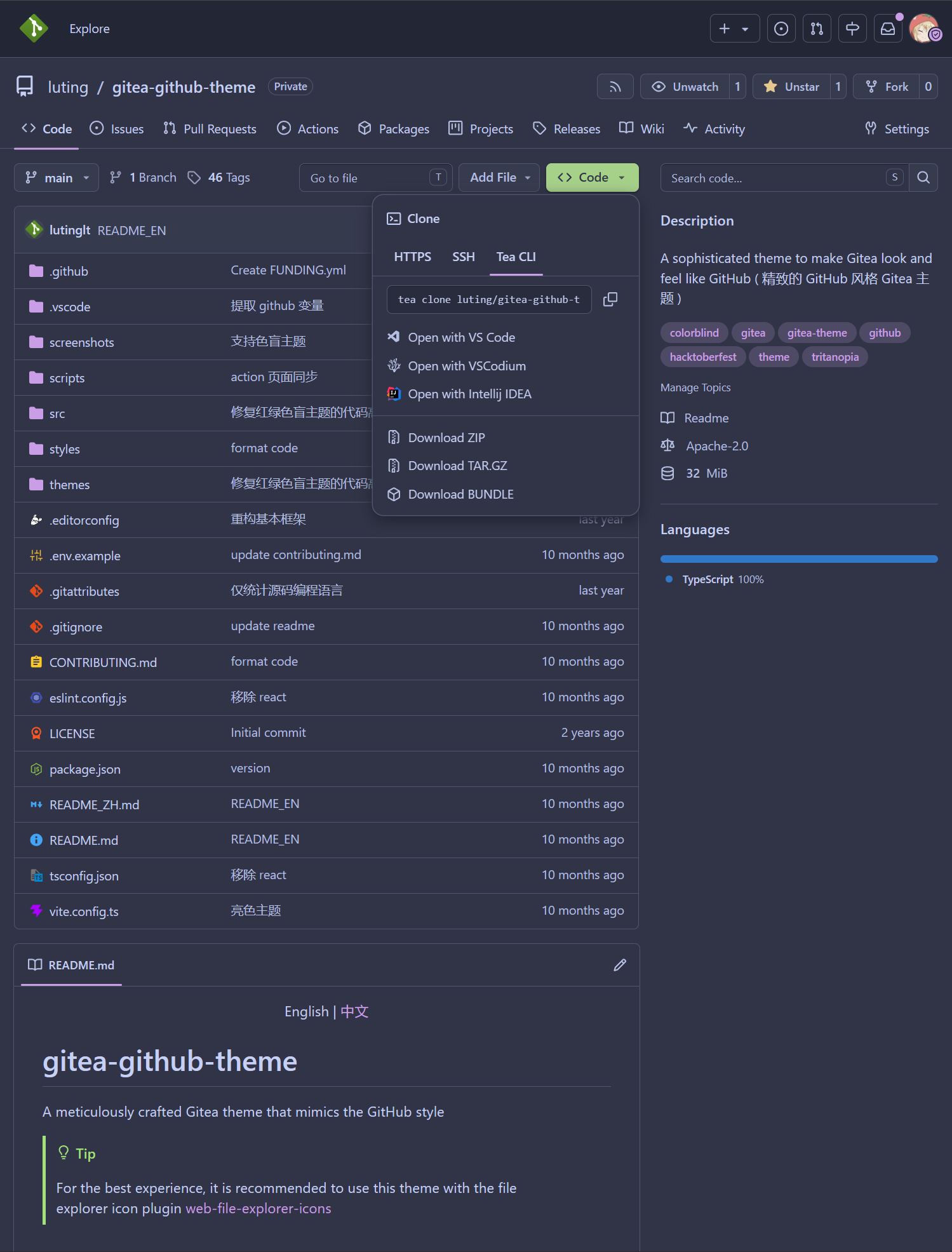
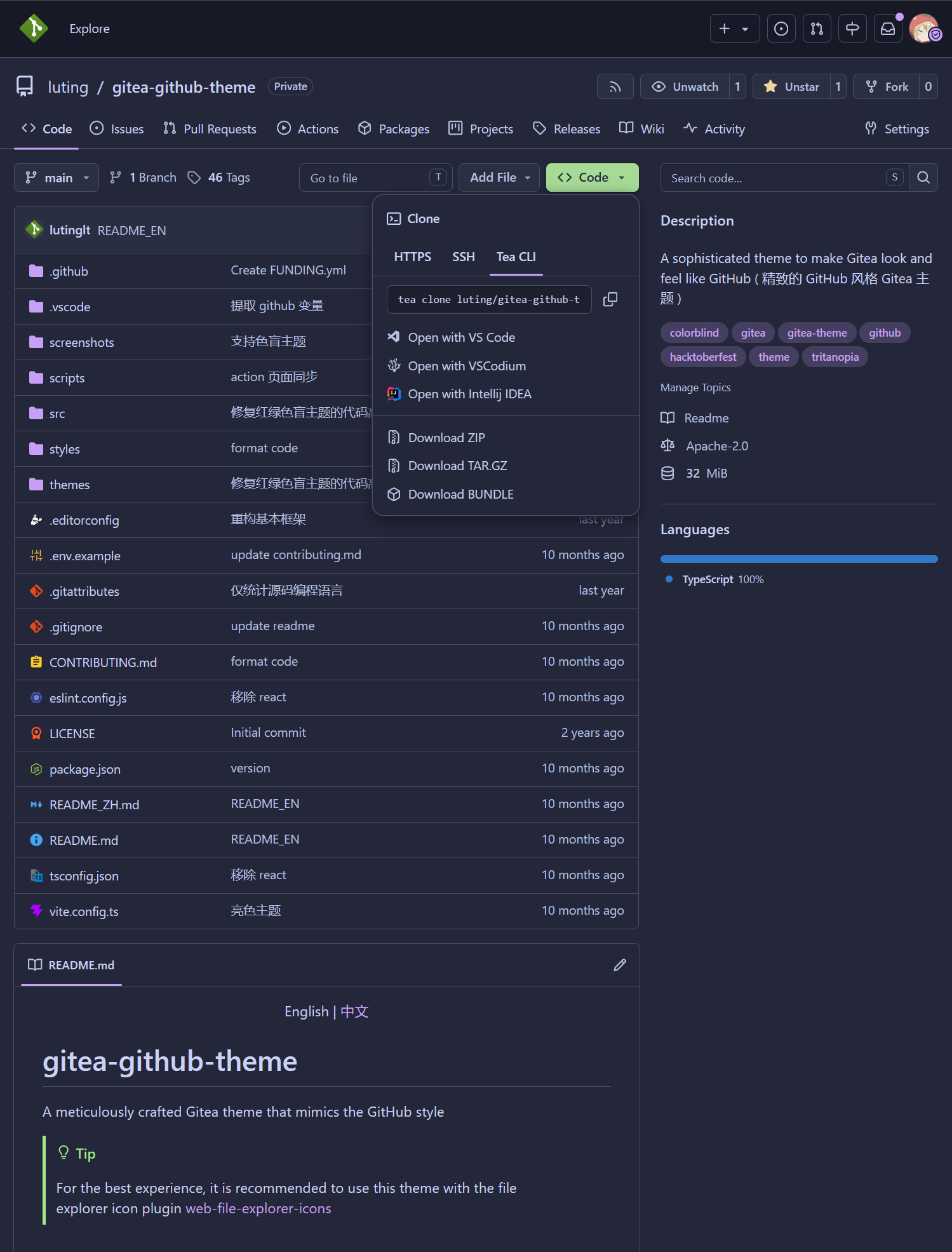
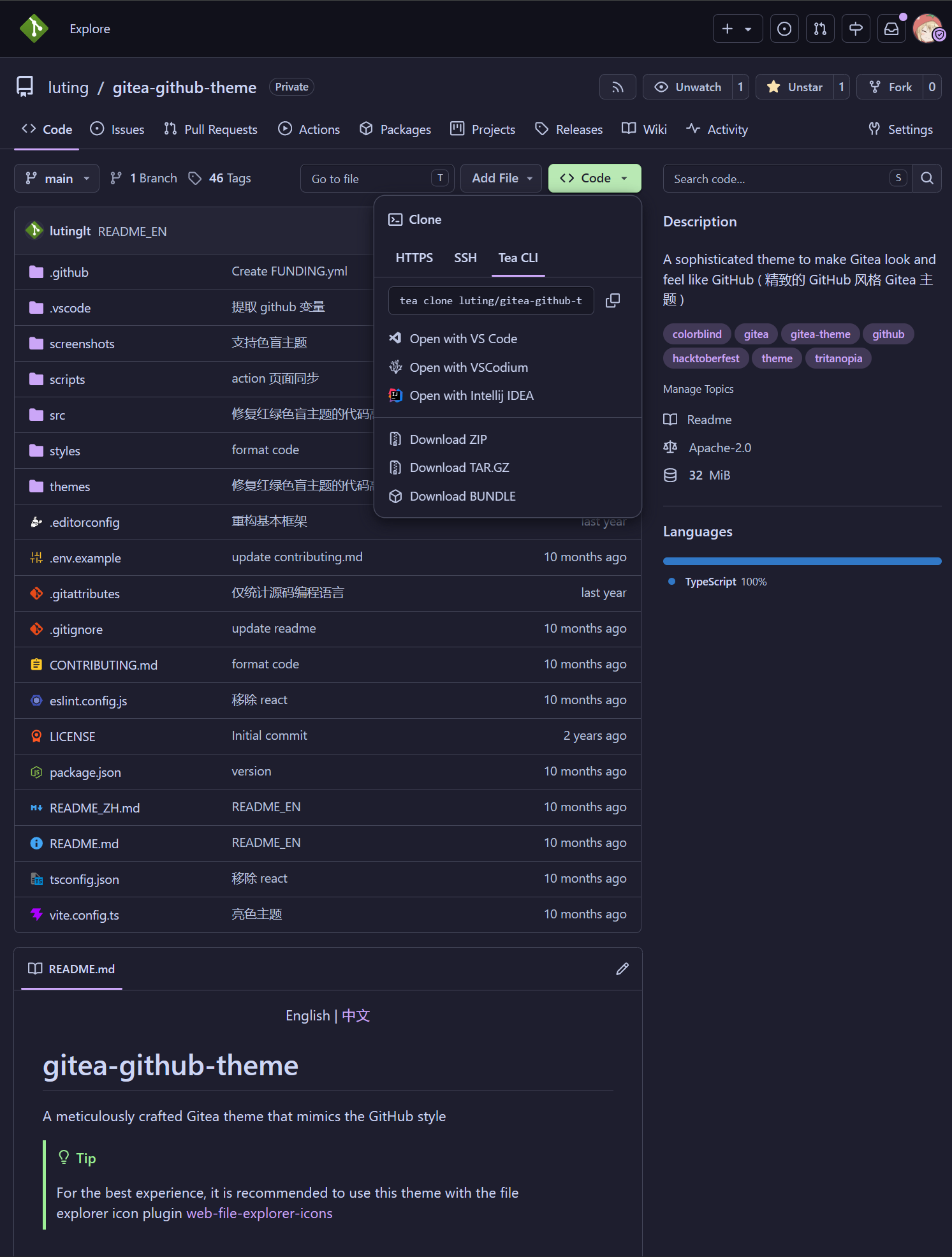
You can customize parts of the theme style according to your preferences
Add the following code at the beginning or end of the theme's CSS file
:root {
  --custom-clone-menu-width: 150px;
  ...
}
Important
Please ensure to add custom variables in the :root selector, otherwise they will not take effect
Variables are separated by ;
It is recommended to place custom variables in a separate file and append them to the theme file using shell commands or other methods
| Variable Name | Description | Default | Github | Recommend | Min | Max |
|---|---|---|---|---|---|---|
| --custom-branch-menu-width | Branch menu width | 320px | 320px | 320px | Gitea | 640px |
| --custom-clone-menu-width | Clone button menu width | Gitea | 332px | 200px | 150px | 400px |
| --custom-user-menu-width | User menu width | 192px | 200px | Gitea | 320px | |
| --custom-explore-repolist-columns | Number of repository list columns on explore page | 2 | 2 | 2 | ||
| --custom-explore-userlist-columns | Number of user/organization list columns on explore page | 3 | 1 | 2/3 | ||
| --custom-user-repolist-columns | Number of repository list columns on user page | 2 | 2 | 1/2 | ||
| --custom-org-repolist-columns | Number of repository list columns on organization page | 1 | 1 | 1/2 | ||
| --custom-org-userlist-columns | Number of user list columns on organization page | 2 | 1 | 1/2 |
You might want to use the development version of the theme instead of the released version.
Please ensure you have Bun 1.3.14 or above installed.
git clone https://github.com/whereareiam/forgejo-github-theme.git
cd forgejo-github-theme
bun install
bun bundle
After compilation, CSS files are generated in dist. Install them as described above. The full release packaging step,
including templates and fonts, is available through the repository's CI workflow.
For faster iteration on CSS and templates, run the pinned local Forgejo preview. Its Compose file and helper code live
under dev/; Docker and Bun are required.
bun dev:forgejo:watchOpen http://localhost:3000. The preview skips Forgejo's first-run setup, selects github-auto
by default, and signs in automatically as whereareiam, including when a public page is opened first. Set
FORGEJO_PREVIEW_AUTO_LOGIN=false to keep the normal sign-in page; the default credentials are whereareiam / preview.
The watcher rebuilds the theme and restarts Forgejo
after source changes so CSS and template updates are visible. The local Forgejo data is kept in the Docker volume
forgejo-dev-data.
The checked-in fixture snapshot under dev/fixtures restores whereareiam/identica-docs and the arcadeya/devops
organization repository. It includes the recorded identica-docs Actions history as display-only data; no runner is
configured and no workflow executes during seeding. It also restores the repositories' original creation times and
their recorded public activity, including pushes, tags, and releases, so the profile activity timeline is useful for
visual checks.
Override the local login before starting when needed:
FORGEJO_PREVIEW_USER=alice FORGEJO_PREVIEW_PASSWORD='local-password' bun dev:forgejoStop the preview with:
bun dev:forgejo:stopTo rebuild and sync once without watching, use bun dev:forgejo. After a later manual build, use bun dev:forgejo:sync
to copy the generated files into the running container.
The preview automatically reloads open pages after a successful rebuild or dev:forgejo:sync. Each refresh uses
versioned theme stylesheets (including auto-theme imports) and custom scripts, so browser cache clearing is unnecessary.
Run bun dev:forgejo:watch while editing to rebuild, restart, and reload automatically. These reload hooks exist only
in dev/.generated/templates and the local preview output; release archives contain the normal theme assets.