


FEATool Multiphysics (short for Finite Element Analysis Toolbox) is a fully integrated simulation environment for modeling and solving coupled multi-physics and engineering problems.
FEATool combines geometry creation, meshing, physics definition, solvers, and postprocessing in a single easy-to-use toolbox. It is designed for engineers solving practical finite element analysis (FEA) and multiphysics problems, researchers developing and testing new ideas and models, and students learning mathematical modeling and numerical simulation.
- GUI - Fully integrated and easy-to-use Graphical User Interface
- Geometry - Built-in 1D, 2D, and 3D CAD geometry modeling
- Meshing - Automatic FEA and CFD mesh generation
- Physics - Predefined equations and multiphysics coupling for
- Solvers - Built-in and external multiphysics, FEA, and CFD solvers
- Built-in multiphysics solver
- OpenFOAM® (CFD)
- FEniCS (FEA/multiphysics)
- SU2 code (CFD)
- Post-processing - Visualization, analysis, and data export
- Customization
- Programming & Scripting - Fully programmable Python and MATLAB® APIs
- MATLAB® (.m file) script simulation models
- Python FEniCS simulation scripts
- Custom Equations - User-defined, custom PDE equations, and nonlinear expressions
- Programming & Scripting - Fully programmable Python and MATLAB® APIs
FEATool Multiphysics supports 64-bit Windows, Linux, and macOS operating systems. A minimum of 4 GB RAM is required, with 8 GB or more recommended for larger simulations.
FEATool Multiphysics can be installed either as a stand-alone application or as a MATLAB® toolbox. It is recommended to uninstall previous versions before installing or upgrading to a newer release.
The installers for the latest (and previous) releases can be downloaded from the FEATool releases page and installed manually. Alternatively, the MATLAB® toolbox can also be installed directly from the MATLAB® APPS and Add-On Toolbar.

Use the steps below to install the app in stand-alone mode
-
First download the installer for your operating system
-
Save it to a directory and run the installer. This will first download and/or install the application runtime if required (which may require up to 10 GB space to install), and then the program file will be extracted.
-
When everything has been installed, run the program file to start FEATool. Please be patient as the application runtime can take some time to start.
Follow the steps below to install FEATool as a MATLAB® toolbox, and to enable running MATLAB® (.m file) simulation scripts
-
Download the FEATool_Multiphysics.mlappinstall toolbox installation file.
-
Then start MATLAB®, press the APPS toolbar button, and select the Install App button.
-
When prompted to choose a toolbox file to install, select the FEATool_Multiphysics.mlappinstall file and press OK.
-
Press the Install button if prompted to "Install to My Apps".
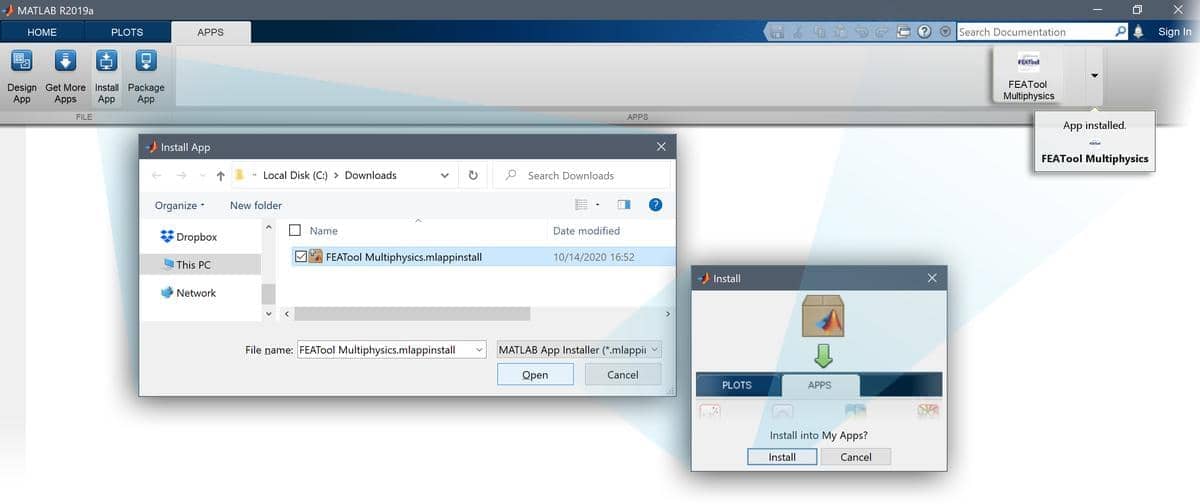

Once the toolbox has been installed, an app icon will be available in the APPS toolbar to start the FEATool GUI. (Note that MATLAB® may not show or give any indication of the toolbox installation progress or completion.)
Automated modeling tutorials and examples for a wide range of multi-physics applications can be selected and run from the File > Model Examples and Tutorials menu option in the GUI.
Example MATLAB® script files and simulation models are also available in the examples folder of the FEATool program directory. Additional tutorials, examples, and technical articles are regularly published on the FEATool blog.
The FEATool Multiphysics GUI has specifically been designed to be easy to use, and allowing users to learn multiphysics simulation through experimentation.
The standard modeling process is divided into six different steps, or modes:
- Geometry - Define the geometry to be modeled
- Grid - Generate a computational mesh (by subdividing the geometry)
- Equation - Define physics, material properties, parameters, and coefficients
- Boundary - Specify boundary conditions describing how the model interacts with its surroundings
- Solve - Solve and simulate the model
- Post - Visualize, analyze, and postprocess the simulation results
The modes are accessed using the corresponding buttons in the left-hand Mode toolbar. Each mode provides a specialized set of Tools, which are activated when the mode is selected. Additional and advanced options are available from the corresponding mode menus.
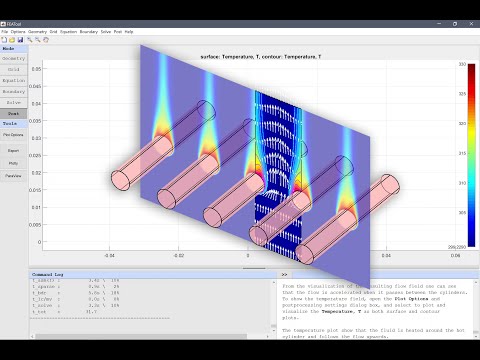
A basic example showing how to set up and solve coupled fluid flow and heat transfer in a heat exchanger is demonstrated in the quickstart video tutorial (click the image below to start the tutorial).
FEATool Documentation as well as the FEATool user and discussion forum are available online, and also by selecting the corresponding option in the Help menu of the GUI.
When using FEATool Multiphysics in research, please cite the specific software release used. Versioned releases are permanently archived on Zenodo. The concept DOI 10.5281/zenodo.22266311 can be used to reference FEATool Multiphysics independently of a specific release.
(C) Copyright 2013-2026 by Precise Simulation Limited. All Rights Reserved.
FEATool Multiphysics™ is a trademark of Precise Simulation Limited. MATLAB® is a registered trademark of The MathWorks, Inc. OPENFOAM® is a registered trade mark of OpenCFD Limited, producer and distributor of the OpenFOAM® software. All other trademarks are the property of their respective owners. Precise Simulation and its products are not affiliated with, endorsed, or sponsored by these trademark owners.
The license agreement for using FEATool Multiphysics™ is included with the distribution and can also be viewed by selecting About FEATool... > License Agreement from the Help menu in the application.
Read the license terms and conditions carefully before installing or using the programs or documentation. Installing or using the programs means you have accepted and agree to be bound by the terms and conditions of this agreement. if you do not accept them, uninstall, remove and completely delete the programs and documentation.