Cunning Document Scanner is a Flutter-based document scanner application that enables you to capture images of paper documents and convert them into digital files effortlessly. This application is designed to run on Android and iOS devices with minimum API levels of 21 and 13, respectively.
- Fast and easy document scanning.
- Conversion of document images into digital files.
- Support for both Android and iOS platforms.
- Minimum requirements: API 21 on Android, iOS 13 on iOS.
- Limit the number of scannable files on Android.
- Allows selection of images from the gallery on Android.
A state of the art document scanner with automatic cropping function.
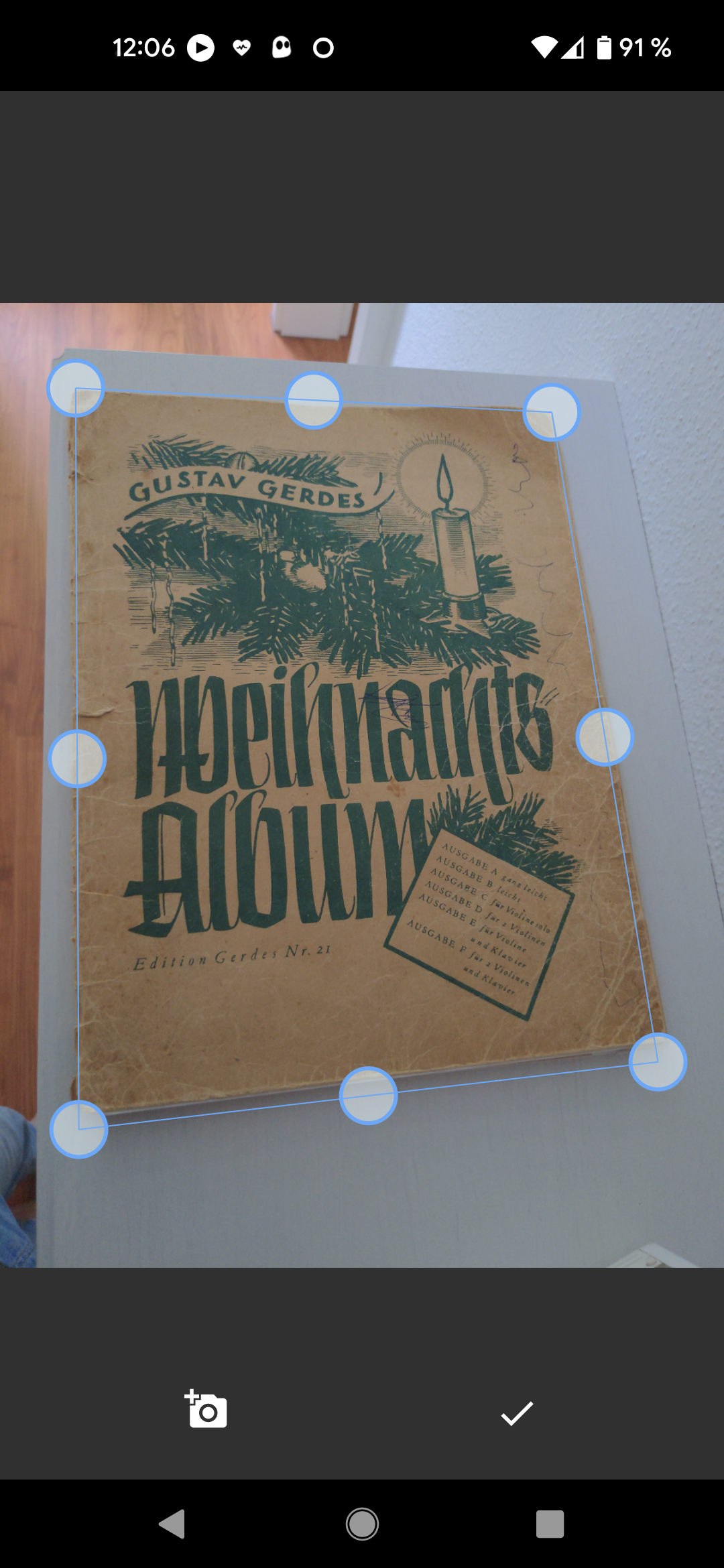
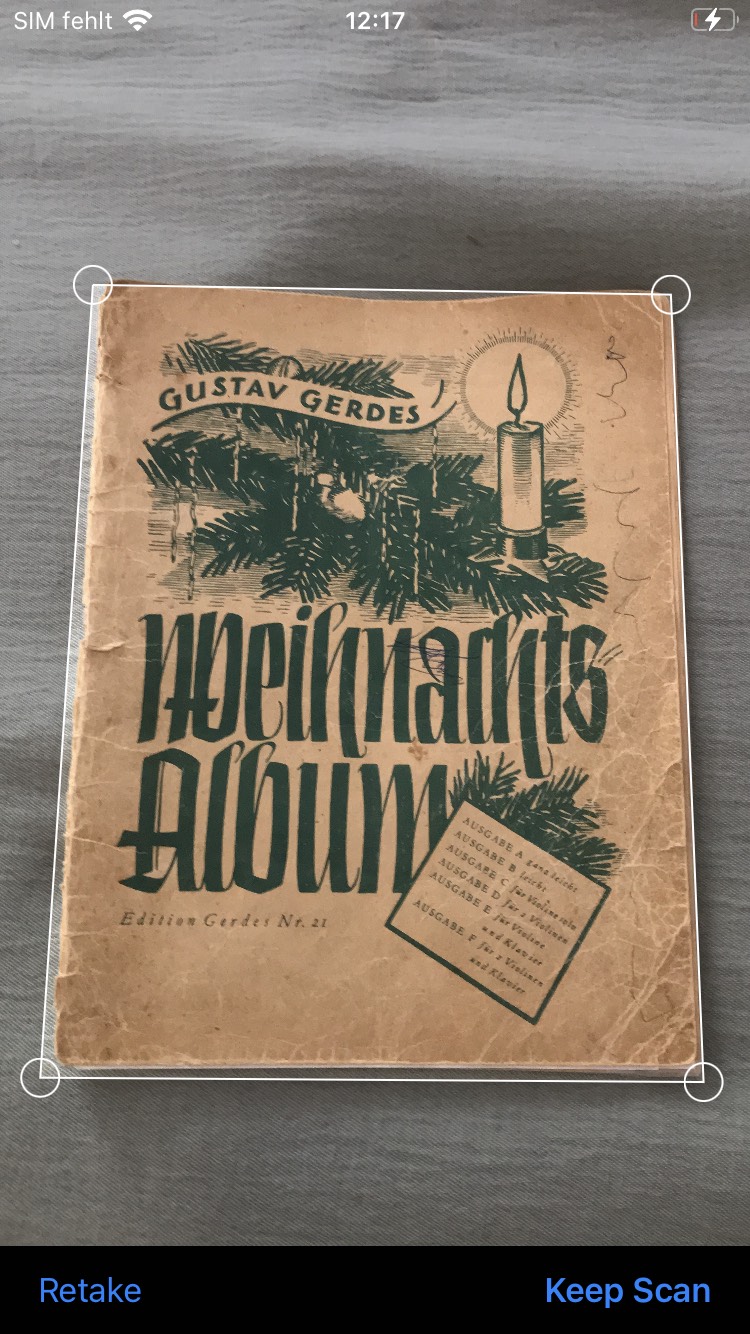
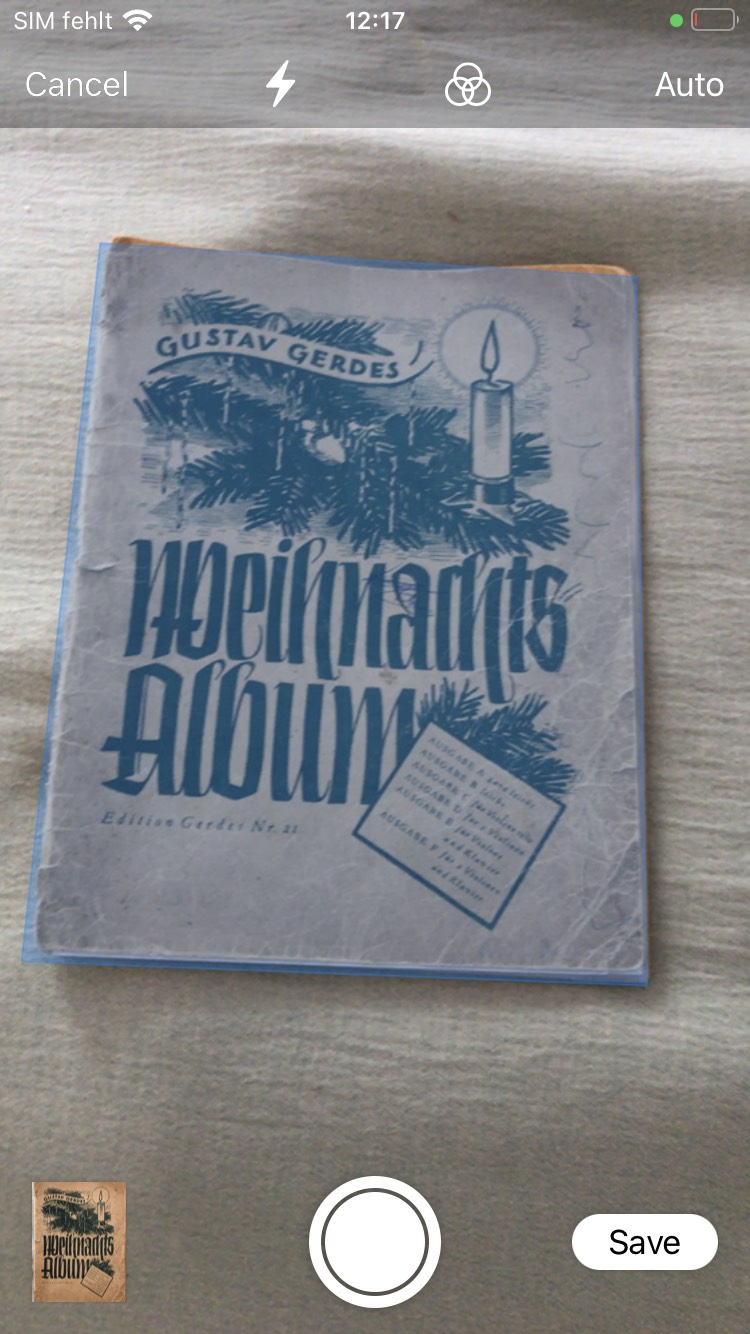
Follow the steps below to set up your Flutter project on Android and iOS.
Ensure you meet the minimum version requirements to run the application on Android devices.
In android/app/build.gradle, verify that minSdkVersion (or minSdk) is at least 21:
android {
    ...
    defaultConfig {
        ...
        minSdkVersion 21
        ...
    }
}Ensure you meet the minimum version requirements to run the application on iOS devices:
-
Set the iOS Deployment Target in Xcode (under Minimum Deployments) to at least 13.0.
-
If your project still uses CocoaPods, make sure the platform version is at least 13.0 in your
ios/Podfile:platform :ios, '13.0'
Add the NSCameraUsageDescription key to your app's ios/Runner/Info.plist file with a description of why your app needs camera access:
<key>NSCameraUsageDescription</key>
<string>Access to the camera is required to scan documents.</string>
Note
Since this plugin has migrated to Swift Package Manager (SPM), and the permission_handler dependency (version 12.0.2+) also supports SPM, permissions are now resolved automatically. The dependency scans your app's Info.plist and compiles only the code for the permission keys you have declared (e.g., NSCameraUsageDescription). You do not need to manually configure preprocessor macros in your Podfile.
To ensure native iOS UI components (like the document camera, photo library picker, and our source selection menu) are displayed in the user's preferred language (e.g., Spanish), you can enable mixed localizations in your app's ios/Runner/Info.plist:
<key>CFBundleAllowMixedLocalizations</key>
<true/>
Alternatively, you can add the supported languages to the Localizations list in Xcode:
- Open
ios/Runner.xcworkspacein Xcode. - Select the
Runnerproject in the left project navigator. - In the Info tab, under the Localizations section, click the
+button and add the languages your app supports.
If one of these configurations is applied, iOS will automatically load the plugin's built-in translations (supporting 29 major languages) and translate the system document camera UI to the device's system language. Otherwise, iOS will default all system and plugin UI strings to English.
The easiest way to get a list of images is:
final imagesPath = await CunningDocumentScanner.getPictures();You can also scan directly to a single PDF document. If asPdf is set to true, the method returns a list containing a single file path pointing to the generated PDF:
   final pdfPath = await CunningDocumentScanner.getPictures(
      asPdf: true,
   );
// pdfPath will be something like: ['/path/to/document.pdf']Allow the user to import images from their photo library/gallery on both Android and iOS:
   final imagesPath = await CunningDocumentScanner.getPictures(
      isGalleryImportAllowed: true, // Show selection sheet/picker to import from photo library
);There are some features in Android that allow you to adjust the scanner that will be ignored in iOS:
   final imagesPath = await CunningDocumentScanner.getPictures(
      noOfPages: 1, // Limit the number of pages to 1
      androidScannerMode: AndroidScannerMode.base, // Use ML Kit base mode on Android (Optional)
);On iOS it is possible to configure which image format should be used to save of the document scans. Available options are PNG (default) or JPEG. In certain situations the JPEG format could drastically reduce the file size of the final scan. If you choose to use JPEG you can also specify a compression quality, where 0.0 is highest compression (lowest quality) and 1.0 (default) is the lowest compression (highest quality). Example usage is:
Note: VisionKit does not expose a scanner mode or filter toggle on iOS. To disable filters or use only crop/rotation, a custom capture and cropping UI would be required.
   // Returns images in JPEG format with a compression quality of 50%.
   final imagesPath = await CunningDocumentScanner.getPictures(
      iosScannerOptions: IosScannerOptions(
         imageFormat: IosImageFormat.jpg,
         jpgCompressionQuality: 0.5,
      ),
);Add cunning_document_scanner as a dependency in your pubspec.yaml file:
dependencies:
  cunning_document_scanner: ^2.2.0
Or run:
flutter pub add cunning_document_scannerIf you want to contribute to this plugin or run the example app locally:
-
Clone this repository:
git clone https://github.com/jachzen/cunning_document_scanner.git
-
Navigate to the example directory:
cd cunning_document_scanner/example -
Install dependencies:
flutter pub get
-
Run the application:
flutter run
Contributions are welcome. If you want to contribute to the development of Cunning Document Scanner, follow these steps:
- Fork the repository.
- Create a branch for your contribution:
git checkout -b your_feature - Make your changes and commit:
git commit -m 'Add a new feature' - Push the branch:
git push origin your_feature - Open a pull request on GitHub.
If you encounter any issues or have questions, please open an issue. We're here to help.
This project is licensed under the MIT License. See the LICENSE file for more details.