"# image"
Program name: image.py
Born: August 13, 2018
Updated: August 3, 2020
Author: Robert D. Schoening
- Image.py ("the program") has three features. All operate independently. (Detailed description below):
- ADD TEXT WATERMARKS TO IMAGES: adds a text watermark to all images in a directory (see Figures 1 and 2).
- CONVERT COLOR IMAGES TO BLACK-AND-WHITE: creates black-and-white copies of all images in a directory (see Figure 3).
- SHRINK IMAGES: shrinks all images in a directory (see Figure 4). (Creating smaller image files for attaching to emails was the inspiration for image.py.)
- The program prints on the screen the name of the original file, the name of the newly created file, and the time it took to create that file. Any non-image files that reside in the directory are ignored. Your original1 images are unaltered. See the screen captures below.
- A copy of image.py must reside in the same directory as your image files. (K.I.S.S.)
- You can have different directories for different sets of images, but each directory must have a copy of image.py. To process images one-at-a-time, just put one image in the directory at a time.
- Image files in the directory can be numerous and of mixed format (.jpg, .png, .ppm, .gif, .tiff, etc.). The link to the Pillow library documentation below provides the entire list of supported formats. (Only .jpg and .png formats have been tested with this program so far.)
- When shrinking, all images in the directory are shrunk by the same amount via command line arguments that you enter.
- Aspect ratios are preserved with all three features, even if the argument ratios you provide in the shrinking feature don't match the original's aspect ratio. For example, you can't crop or compress a rectangular image into a square image.
- The program has a Help screen.2.
- image.py is written in Python and uses the Pillow image processing library (see REQUIRED below).
- image.py runs in a Windows 10 terminal (the black Command Prompt window).
- image.py was tested on Windows 10 and Python 3.6.3, and with .jpg and .png files. (It should also run on Linux.)
- Windows 10
- Python programming language: https://www.python.org/
- Pillow library (a PIL fork): https://pillow.readthedocs.io/en/5.2.x/index.html
- Install Python 3.6.3 or higher on your Windows 10 machine.
- Install the Pillow library by using pip, a package manager written in Python. Pip should come with Python 3.6.3.
- Create a new directory to contain the image files you want to process.
- Copy your image files into that directory.
- Copy image.py into that directory. (NOTE: image.py only processes image files in the same directory.)
- Open a terminal window (Command Prompt) and navigate to your directory. Then enter one of the following commands.
In your Command Prompt window, first enter this command:
python image.py wm
Then when prompted, enter the watermark text that you want to appear in the upper left corner, followed by your desired font size and color when prompted again.
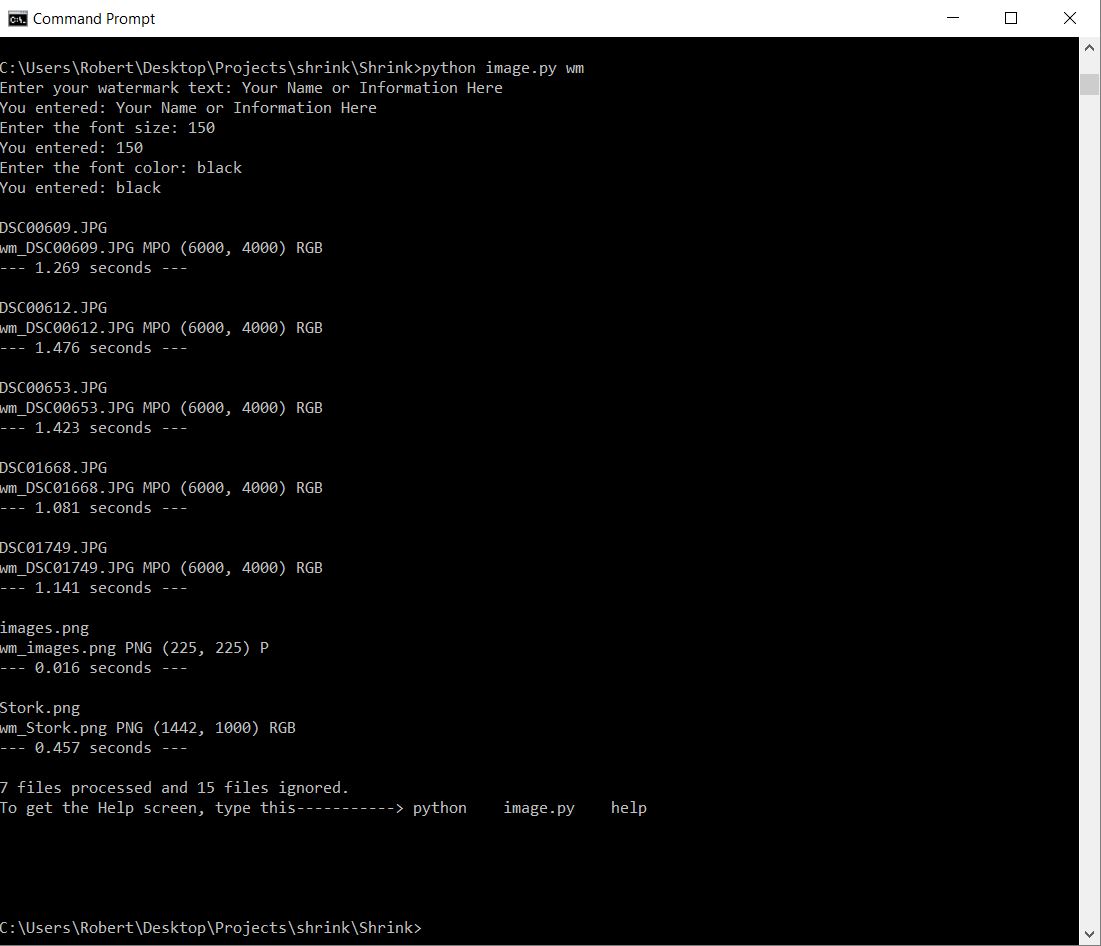
Figure 1: The Watermark Feature
For a 6000 x 4000 image, try a font size of 50 for starters. You'll have to experiment to see what size font looks good. As you can see from Figure 2, a font size of 50 on a 6000 x 4000 image is pretty inconspicuous, but much larger sizes are possible. This particular image went from 7.65MB before adding the watermark to 2.07MB afterwards, even though I didn't use the shrink feature! Why? Because it's a .jpg image.3
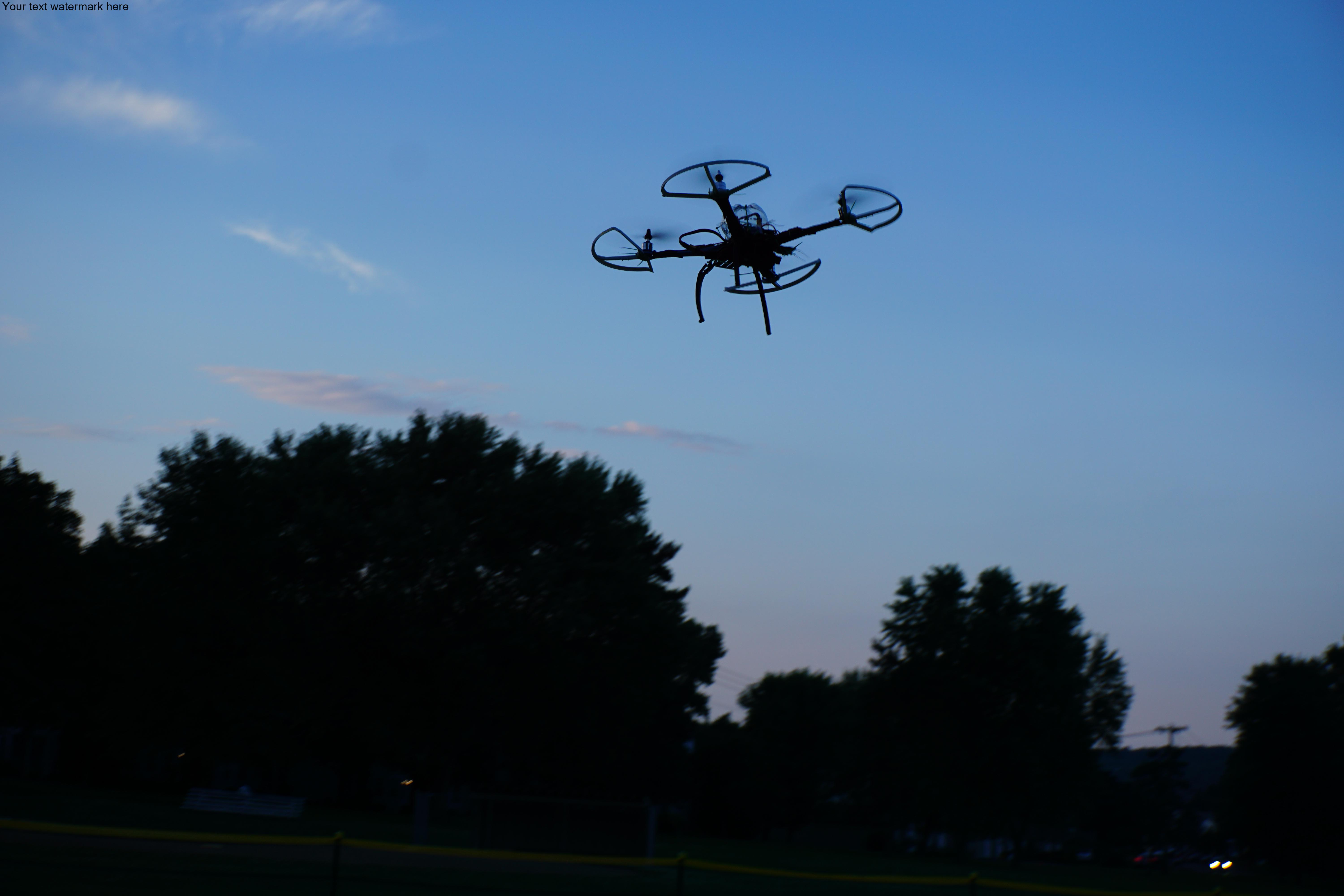
Figure 2: Homemade Drone
Text watermark in upper left corner. Original image = 6000 x 4000 (24MB), font size = 50.
Your new watermarketed images will be named 'wm_'+original_file_name. The program does support watermarking on both color and black-and-white images that were taken with a camera, but it does not support watermarking on images that were converted to black-and-white using this program! Therefore, any files starting with 'bw_' are skipped when watermarking and a message to that effect is printed on your screen. A workaround is to watermark the color versions first, then convert them to black-and-white with the 'python image.py bw' command; the watermark will appear in the black-and-white images. Example uses of watermarks include displaying your name, your company name, your website, or descriptive information about the image. Watermarks also discourage unauthorized use of your images.
In your Command Prompt window, enter this command.
python image.py bw
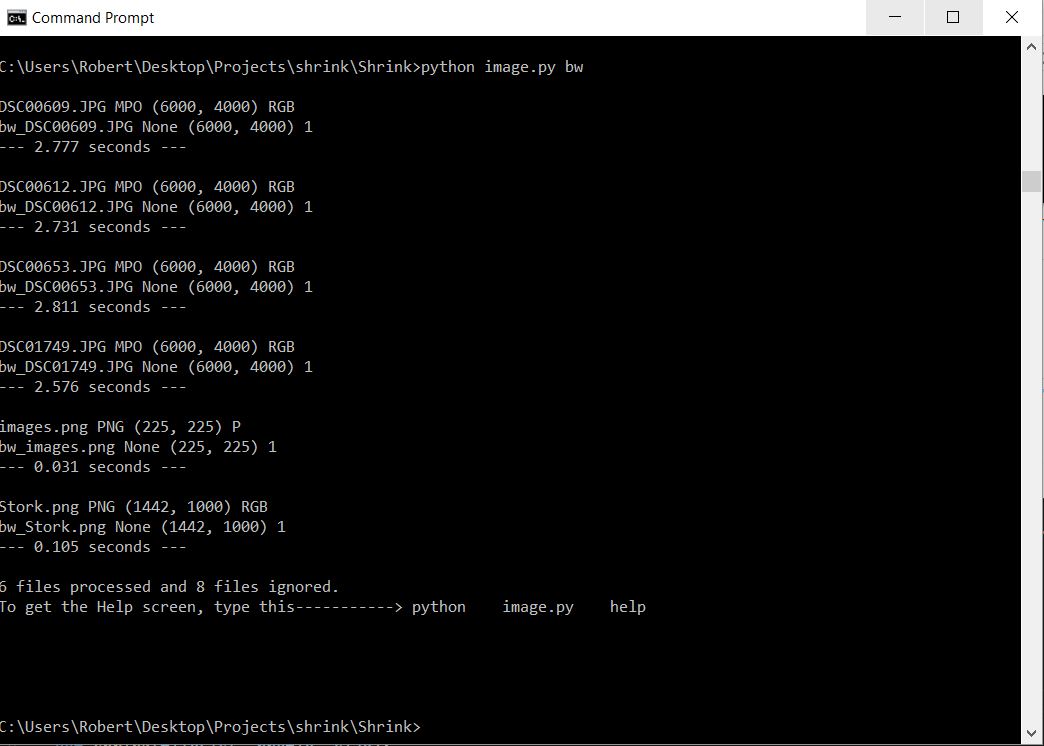
Figure 3: Black-and-White Feature
Your new black-and-white image files will be named 'bw_'+original_file_name. Converting to black-and-white produces larger files, but you can shrink them later if needed.In your terminal window, enter your command in this format:
python image.py x_dim y_dim prefix
x_dim is the maximum desired width of the resulting image in pixels
y_dim is the maximum desired height of the resulting image in pixels
prefix is the (required) text to be prepended to the original filename to create the filename of your shrunken image.
Suppose you have a 6000 x 4000 (24MB) image file named DSC00609.JPG and you want to shrink it down to 600 x 400 for emailing purposes. You want your new file to have additional text prepended4 to their original file name. To accomplish this task, navigate in your terminal window to the image directory, then type this command in the Command Prompt window:
python image.py 600 400 s_
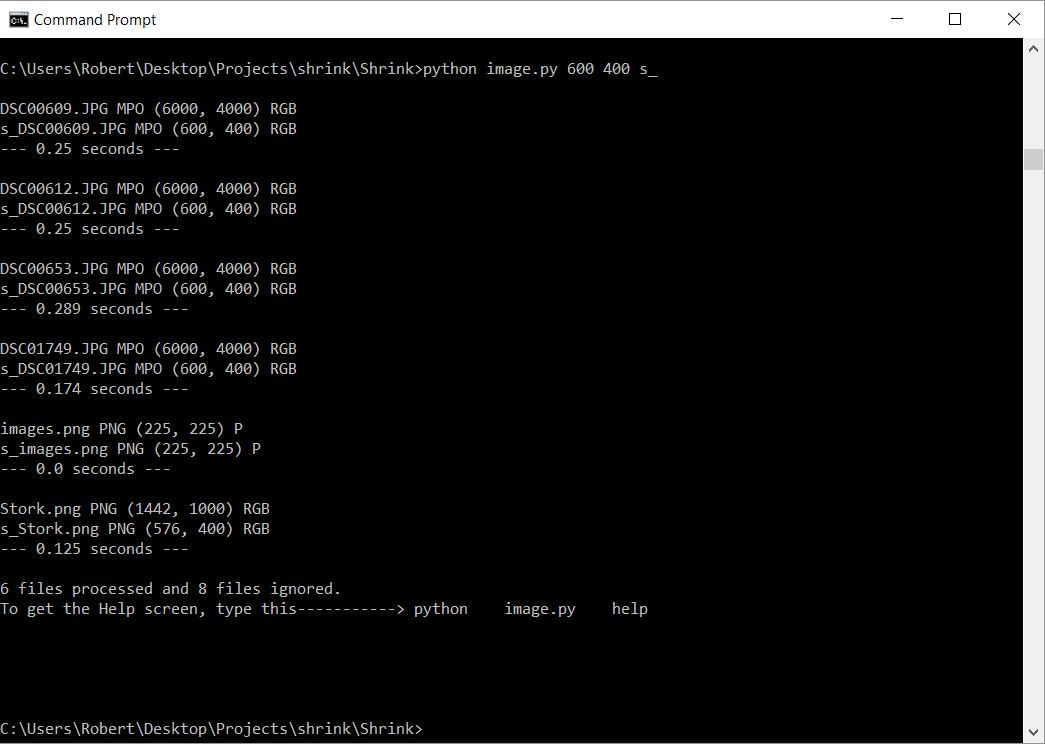
Figure 4: The Shrink Feature
After running image.py, a new file named s_DSC00609.JPG is added to your directory. It is the shrunken version of your original image (DSC00609.JPG), which remains unchanged. (Groups of files as depicted will be named 'prefix'+original_file_name.)1 The program considers "original" images to be the set of all images in the directory at the start of each program execution. That means any new files that you just created, if not relocated into a different directory, will themselves become "originals" the next time you run the program. Files reprocessed this way will start having duplicate prepended text, such as 'bw_bw_', 'bw_bw_bw', 'bw_bw_bw_bw', and your set of "originals" will grow and grow. So unless you want to do multiple things to your files, relocate newly created files into different directories after each program execution.
One exception is with watermarking. As mentioned above, you can't watermark black-and-white images that were converted from color via this program (filenames beginning with 'bw_'), but you can achieve the same result by first watermarking their color versions with the command 'python image.py wm', then converting them to black-and-white with the command 'python image.py bw'. In that case, you will process the same files twice, and they will be labeled thusly: bw_wm_XXXXX.JPG. You might also want to shrink them, which creates yet another prefix.
2 Help Screen
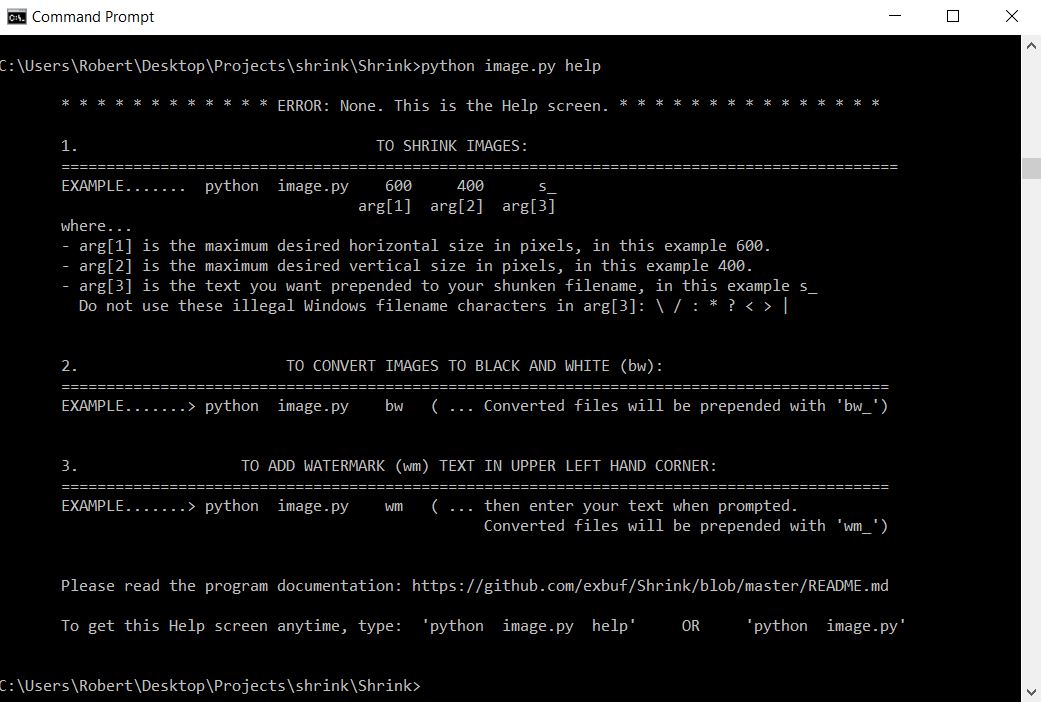
Figure 5: The Help Screen
3 JPEG is a compression standard. Therefore, each time you process a '.jpg' image, it will get smaller, even without deliberately shrinking it. Exception: converting a color image to a black-and-white image (in this program) makes the file bigger! 4 In our context, the word prepend means to attach extra text to the front of a filename. Prepending the original file name distinguishes your new files from the originals so they are not overwritten. Prepending also has the advantage of grouping your newly created images together in Windows File Explorer, which appending (attaching to the back of a filename) does not do.