


 ██████╗  ██████╗  ██████╗███╗   ███╗     ██████╗██╗     ██╗
 ██╔══██╗██╔═══██╗██╔════╝████╗ ████║    ██╔════╝██║     ██║
 ██████╔╝██║   ██║██║     ██╔████╔██║    ██║     ██║     ██║
 ██╔══██╗██║   ██║██║     ██║╚██╔╝██║    ██║     ██║     ██║
 ██║  ██║╚██████╔╝╚██████╗██║ ╚═╝ ██║    ╚██████╗███████╗██║
 ╚═╝  ╚═╝ ╚═════╝  ╚═════╝╚═╝     ╚═╝     ╚═════╝╚══════╝╚═╝

        Local AI on AMD GPUs — one binary, zero setup
ROCm CLI is a command-line tool for setting up and running local AI on AMD GPUs, with a full-screen terminal user interface (TUI) dashboard for GPU telemetry, model serving, and chat.
It ships as a single prebuilt binary for Linux and Windows (x86_64), needs no Python, Rust, or existing ROCm install, and includes inference engine adapters for Lemonade and vLLM.
| Platform | Prebuilt binary | Notes |
|---|---|---|
| Linux (x86_64) | Yes | Ubuntu 24.04 or newer; full support, including the live dashboard and both inference engines |
| Windows (x86_64) | Yes | CLI and Lemonade serving; no live dashboard or vLLM |
| WSL2 (x86_64) | Yes (Linux binary) | Ubuntu 24.04 or newer; full support, including the live dashboard |
| macOS | No | No official installer, release, CI, or QA coverage |
For WSL2 setup and diagnosis, see docs/wsl.md.
Live dashboard telemetry requires Linux or WSL2 (see Interactive interfaces). vLLM serving is Linux or WSL2 only (see docs/vllm.md).
The minimum supported Linux release, native or under WSL2, is Ubuntu 24.04. On
other distributions the equivalent requirement is glibc 2.38 with
GLIBCXX_3.4.32: that is what the Lemonade engine is linked against, and every
published build of it needs those versions, so there is no older release to fall
back to. Ubuntu 22.04 ships glibc 2.35 and cannot run it; Ubuntu 24.04 provides
glibc 2.39 and GLIBCXX_3.4.33.
Important
Tech Preview: This software is provided as-is, without warranty or guarantee of stability. APIs, commands, and behavior might change without notice. Intended for experimentation and early feedback only.
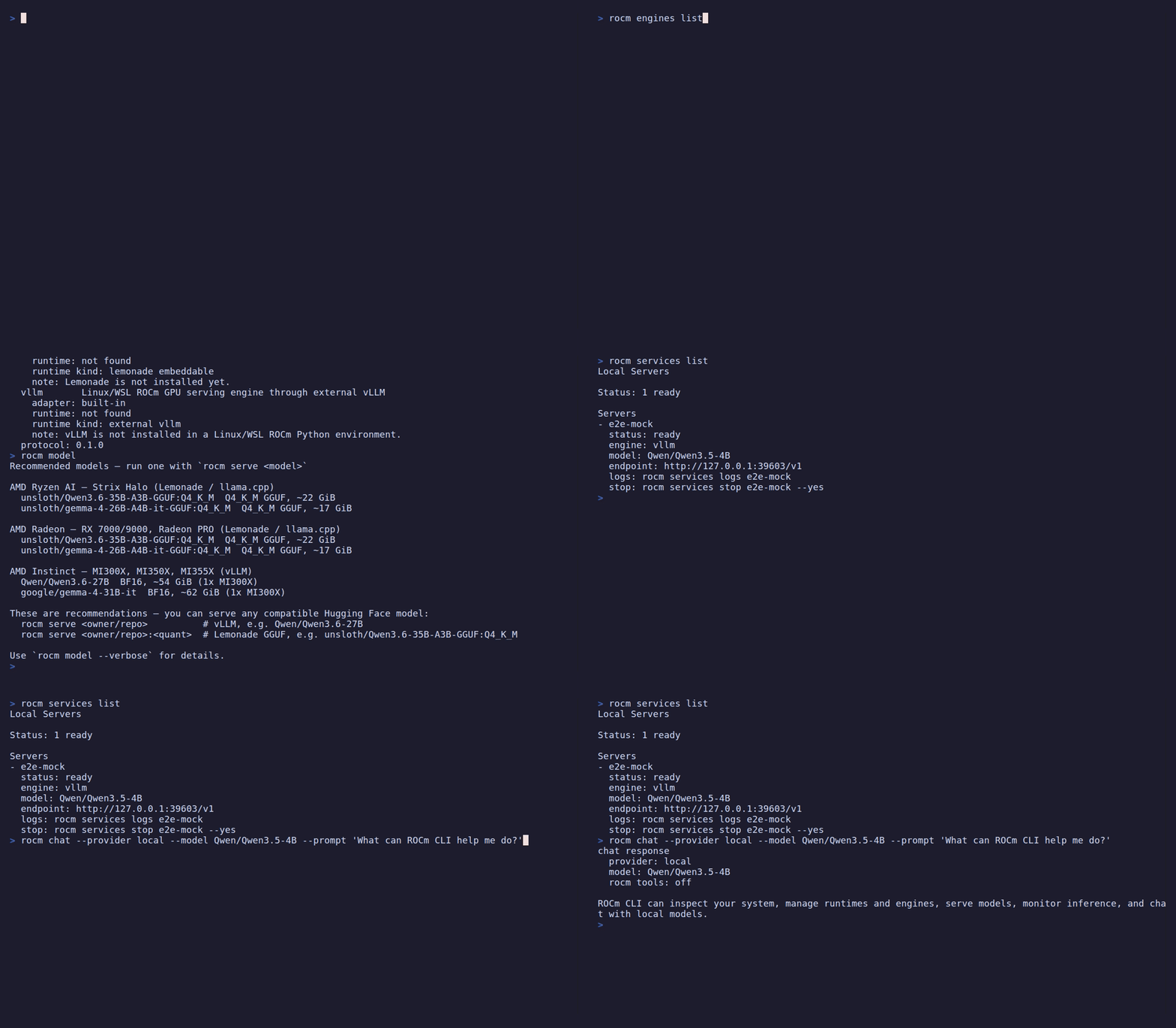
Inspect the environment, discover engines and models, find a running service, and chat with a locally served model:
Explore simulated GPU telemetry, model serving, and offline chat in the full-screen Console:

The installer downloads a prebuilt bundle, verifies its SHA-256 checksum,
installs the rocm and rocmd binaries into ~/.local/bin, and adds that
directory to your shell PATH. Rerun it any time to upgrade. rocm uninstall
removes the binaries, and undoes the PATH change too when no other program
lives in that directory.
curl -fsSL https://raw.githubusercontent.com/ROCm/rocm-cli/main/install.sh | shThis tracks the default release channel. For nightly builds, pass the
nightly channel instead:
curl -fsSL https://raw.githubusercontent.com/ROCm/rocm-cli/main/install.sh | sh -s -- nightlyirm https://raw.githubusercontent.com/ROCm/rocm-cli/main/install.ps1 | iexThis tracks the default release channel. For nightly builds, set
ROCM_CLI_CHANNEL to nightly first:
$env:ROCM_CLI_CHANNEL = "nightly"
irm https://raw.githubusercontent.com/ROCm/rocm-cli/main/install.ps1 | iexOpen a new terminal so the updated PATH takes effect, then run:
rocm versionThe output shows the ROCm CLI version with its release tag or branch and commit
hash, the ROCm SDK that ROCm CLI would use on this computer, and the GPU driver
version. A successful install prints the CLI version line. The SDK and driver
lines read not detected when none is found, which is expected on a computer
where you haven't installed ROCm or a driver yet.
If the shell reports rocm: command not found, confirm that the install
directory is on your PATH. That is ~/.local/bin on Linux,
%USERPROFILE%\.local\bin on Windows, or the folder you set with
ROCM_CLI_INSTALL_DIR.
Building requires Rust; the pinned toolchain in
rust-toolchain.toml (currently 1.96.0) installs automatically through rustup.
git clone https://github.com/ROCm/rocm-cli
cd rocm-cli
cargo build --release
This produces the two binaries under target/release/:
rocm: the CLI and interactive interfacesrocmd: the background telemetry daemon used by the dashboard
Run without installing:
cargo run --release --bin rocm -- examineOr copy the release binaries onto your PATH:
install -m 0755 target/release/rocm target/release/rocmd ~/.local/bin/See CONTRIBUTING.md for the full development setup, test commands, and commit-signing requirements.
Launch ROCm CLI with no arguments:
rocm
With no arguments on an interactive terminal, rocm opens the launcher, a
small front-door menu that gets you to the common tasks:
- Set up this system: install or update ROCm
- Serve a model: run a model on your GPU
- Diagnose & fix: check GPU, driver, and ROCm
- Chat: talk to a local or API-backed model
- Open full dashboard →: escalate into the live dashboard (
rocm dash)
Pick a row with the arrow keys and Enter. Press q or Ctrl-C to quit.
Ctrl-C quits from the launcher and the dashboard alike and restores your
terminal.
The one exception is the dashboard's console for a running job, where
Ctrl-C keeps its existing meaning of "cancel this job" and does not quit. Once
that job finishes, Ctrl-C quits there too.
If a model is still being served, quitting asks for confirmation first. This
covers q, the Esc menu's Quit row, and /quit or /exit in chat, from the
launcher or from a dashboard or chat session opened directly. The prompt names
the model and the real rocm services stop <id> --yes command to stop it. From
the dashboard, pressing s instead jumps straight to the Services overlay to
stop it there. Declining (n or Esc) returns to where you were. Confirming
(y or Enter) quits anyway, and the model keeps running in the background.
Unlike q, Ctrl-C always quits immediately without asking, with the same
running-job exception as above. See
Developer manual QA
for the Windows and launcher-hosted-session details.
On a non-interactive terminal (or piped output), rocm prints a one-shot status
summary instead of opening the launcher.
rocm ships two terminal UIs built on ratatui:
The lightweight hub described above. It runs the guided Set up, Serve, Diagnose, and Chat flows in place, and hands off to the full dashboard when you need live instruments. This is the default surface for everyday use; the legacy full-screen setup assistant has been retired.
The full-screen telemetry dashboard shows every instrument and action on one screen.
It auto-starts an embedded rocmd daemon when none is running, then presents
five tabs (switch with Tab/Shift+Tab or number keys 1–5):
| Tab | What it shows |
|---|---|
| Home | At-a-glance status: GPU, active runtime, running servers |
| ROCm | Guided ROCm and runtime actions with inline details |
| Serving | Start, inspect, and manage model servers |
| Observe | Live GPU utilization, instances, and benchmark telemetry |
| Chat | Assistant chat backed by a local server or configured provider |
Live mode reads telemetry over a Unix domain socket, so it requires Linux or
WSL2. Use rocm dash --demo for a synthetic session that runs anywhere without a
GPU or daemon.
Before serving a model, check whether a managed ROCm runtime is already configured:
rocm examine
When active_runtime_status reports ready, you can serve a model now. A
machine can also have an existing ROCm install that rocm examine reports as
legacy_rocm_status: detected_unmanaged, alongside the managed runtime. To
install a runtime, or to get a different version or configuration, run:
rocm install sdk
This downloads TheRock ROCm wheels and a matching PyTorch stack into a managed
environment. Running rocm install sdk creates a managed runtime alongside any
legacy install.
ROCm CLI supports ROCm 7.14, 10.0, and 10.1. Without --version,
rocm install sdk currently installs ROCm 7.14. To install ROCm 10.0 or 10.1,
add --version. If ROCm CLI can't tell which exact GPU arch this computer has,
or you want a different one, also add --family with the raw gfx code from
rocm examine. For example: --version 10.1.0 --family gfx1200.
Running rocm install sdk when a managed runtime is already the active default
asks first, because the new install takes over as the active default; see
ROCm installation
for that gate, the flags that approve it without a prompt, and the ROCm 10 and
newer requirements.
After the install finishes, serve a model:
rocm serve qwen
qwen is a built-in alias for a small assistant model that serves out of the
box. You can also serve any compatible Hugging Face model directly. See
Model serving for the GGUF versus safetensors rule, because which
form works depends on the engine your GPU selects.
| Command | Description |
|---|---|
rocm |
Open the launcher menu (setup, serve, diagnose, chat, dashboard) |
rocm examine |
Check GPU, ROCm install, engines, and managed folders |
rocm diagnose |
Match this machine against known ROCm, PyTorch, and llama.cpp failure modes |
rocm diagnose --model <model> |
Say whether a model will run here, before downloading it |
rocm diagnose --report |
Show what this machine would contribute to a problem report, and send nothing |
rocm fix [<fix-id>] |
Apply a fix reported by rocm diagnose |
rocm install sdk |
Install TheRock ROCm wheels into a managed Python environment |
rocm install driver |
Install the AMD kernel driver on Linux; on Windows, report the display driver version and age (installs nothing) |
rocm serve <model> |
Start a local OpenAI-compatible model server |
rocm remote serve <machine> <model> |
Serve a model on another GPU machine over your private network |
rocm dash |
Open the full-screen telemetry dashboard |
rocm bench load --endpoint <url> |
Load-test a local OpenAI-compatible endpoint |
rocm setup status |
Show first-time setup state |
rocm version |
Print the ROCm CLI version, release tag or branch, and commit hash, plus the ROCm SDK and GPU driver in use |
rocm completions <shell> |
Print a shell completion script (bash, zsh, fish, elvish, powershell) |
rocm examine [--json] [--framework auto|pytorch|llama-cpp|skip]
Checks this computer's GPU, ROCm install, engines, and managed setup
folders. Run this command first to see whether a system is ready and what
rocm install sdk and rocm serve will see. --json emits a
machine-readable report for diagnosis tooling instead of the human-readable
summary. --framework controls which ML framework the --json report probes
for its ROCm build and compiled GPU architectures:
auto(the default) tries PyTorch, then falls back to llama.cpp.pytorchorllama-cppprobe only that framework.skipruns no framework probe at all, which is fastest and still enough to answer GPU and driver questions.
--framework only affects the JSON report, not the human-readable one.
On Windows, the human-readable summary also shows the AMD display driver's
driver_version and driver_date, and a driver_age line. driver_age
compares the driver date with the release of the first HIP SDK for Windows
(27 July 2023). AMD publishes no minimum driver version for the HIP SDK or for
the Lemonade Vulkan backend, so this is a hint to look at the driver, not a
statement that the driver is broken. The date is only a floor: it cannot judge
newer GPUs such as gfx120X, gfx1150 and gfx1151, which may need newer drivers.
rocm diagnose lists the same finding as
fix-22-display-driver-old with a WEAK score. Its advice is AMD's support
page and a restart after the install. The entry is advice about the host, not a
cause of any reported symptom, so when nothing else matches, rocm diagnose
still says where to file it upstream. rocm-cli never installs drivers on
Windows. The Vulkan driver version is not shown.
rocm diagnose [--symptom TEXT] [--top N] [--json] [--distro [NAME] | --report [--send]]
rocm diagnose --model <model> [--json]
rocm fix [<fix-id>] [--yes] [--dry-run] [--device-index N] [--json]
diagnose matches this machine against a fixed catalog of known
ROCm, PyTorch, and llama.cpp misconfigurations and ranks what it finds. It can
only recognize failure modes that are in the catalog: no match means "not
recognized", not "nothing is wrong". In that case it points you at where to
report the symptom.
Each result prints an id: and an apply with: command. The leading #1, #2
are ranking positions for reading order only. rocm fix takes the id, not the
position.
rocm diagnose takes these flags:
--symptomtakes raw error text to sharpen keyword scoring.- On Windows,
diagnosealso checks the age of the Visual C++ runtime, not only whether it is there. The runtime inSystem32must be 14.40 or newer (fix-21-msvc-redist-outdated). Programs built with a recent toolset, such as the llama.cpp server that Lemonade installs, crash with an access violation inMSVCP140.dllon an older one.rocm examine --jsonshows the version it read asmsvc_redist_version.rocm fixonly prints the update plan, including awinget installline; it never runs the install. --topcaps how many matches are shown in the human-readable output (default 5).--jsonalways emits the full, untruncated report.--distrodiagnoses a WSL distribution from the Windows host instead of this machine (nothing needs to be installed inside the distribution; name it only when more than one is installed). Inspecting remotely this way skips checks that need to read the distribution's own environment (HSA_OVERRIDE_GFX_VERSION,PATH, the framework and ROCm pairing) and the library and shared-memory checks (fix-18-comgr-conflict,fix-19-shm-too-small). Runrocm diagnoseinside the distribution for those.--reportshows exactly what this machine would contribute to a problem report, and sends nothing. There is no transport yet, and there will be no automatic one: a report leaves a machine only by its owner's own action.--send, which requires--report, additionally offers a prefilled mail carrying that report. It still sends nothing: the mail opens already filled in with the content--reportjust printed, addressed toROCmCLI@amd.com, and it leaves the machine only when you send it yourself. Requiring--reportis what guarantees the content is shown before the mail is offered.
The --report content is deliberately narrow (a schema version, the matched entry, whether
a fix was offered for it, the GPU architecture and which compatibility
matrix snapshot it was checked against, the OS family, distribution and
major version, the ROCm release, the inference engine and its release, the
CLI version), and it carries no host name, user name, file path, or error
text.
The ROCm release and the inference engine's release are each cut back to a release, so a build number that would narrow toward one machine never appears there; the CLI's own version is the exception, since it names the tool that wrote the report instead of something read off the machine. The distribution is checked against a list of known names instead of being repeated from the machine.
Hardware that is not on AMD's published compatibility matrix produces no report at all, and the CLI says why. So does a WSL machine, for a different reason: this CLI does not inspect the GPU on WSL yet, so it cannot confirm the hardware is on the compatibility matrix and says that instead of claiming the architecture could not be read.
With --send, a mail client opens only when you asked and the machine looks like
a desktop you are at; over SSH, with no display, or with ROCM_NO_BROWSER
set, the address and the link are printed instead, which is also what
happens on a machine with no mail client. It is not combinable with
--json, which exists for scripts, and a script is not a person who can
read a mail before sending it. Note that a mail carries your address, which
the report itself does not. The dashboard offers the same path on its Diagnose
screen: p shows the report, and s asks before it runs --report --send.
fix applies a known fix by the id: that diagnose reported, not the
ranking position noted above, which isn't a stable name. Run it with no id
to list the whole catalog.
Each fix carries a marker saying what happens on
this machine: AUTO (this command carries out the change), NEEDS-ARG (it will,
once given the argument it names), PRINT-ONLY (it prints the steps for you to
run yourself, usually because the right command depends on a choice only you
can make, sometimes because it also needs sudo or a reboot), or DIAGNOSE-ONLY
(no reliable fix exists, so running it names the problem, changes nothing, and
exits 0). info-20-gpu-no-rocm-support is the entry marked DIAGNOSE-ONLY
today: a GPU that ROCm has never shipped a runtime build for is a fact about the
hardware, not something an install or a setting can put right.
rocm fix takes these flags:
--dry-runshows any fix's plan without changing anything.--yesskips the interactive confirmation once you've reviewed it.--device-indexpins the discrete GPU index forfix-9-igpu-dgpu, marked NEEDS-ARG; without it, that fix only prints therocminfo(Linux) orhipInfo.exe(Windows) query needed to find the index and makes no change.--jsonprints the catalog as JSON for tooling. It's valid only without a fix id.
rocm install sdk    [--channel release|nightly] [--format wheel|tarball]
                    [--version x.y.z | --build-date YYYY-MM-DD]
                    [--family gfx110X-all] [--prefix PATH] [--devel] [--dry-run]
                    [--approve-replacing-active-default] [--yes]

rocm install driver [--dkms] [--yes] [--dry-run] [--reconcile]

rocm update         [--apply] [--runtime KEY] [--activate] [--dry-run]
                    [--json] [--timeout-secs SECS] [--yes]
install sdk downloads TheRock ROCm wheels into a Python environment managed
by ROCm CLI. ROCm CLI supports ROCm 7.14, 10.0, and 10.1. Without --version,
it currently installs ROCm 7.14. To install 10.0 or 10.1, follow the steps under
ROCm 10 and newer, below.
To remove ROCm CLI and what it manages, see Logs and cleanup.
Some AMD GPUs are detected but have no ROCm SDK build at all. The Vega iGPU in
Renoir, Lucienne, Cezanne and Barcelo APUs — the Radeon Vega graphics in Ryzen
4000 and 5000 mobile and desktop parts, reported as gfx90c — is one of them.
For these, install sdk stops and says no ROCm SDK build exists for that GPU,
instead of listing package families to try. It does the same when you name such
a target yourself with --family gfx90c: the request is refused, and no other
family is substituted for it. rocm examine reports the same conclusion on a
rocm_support line (see Examine).
These GPUs still work with the Vulkan backend, which needs no ROCm SDK.
Pass --devel to also install the compiler and headers needed to build GPU
code. This roughly doubles the download.
--devel isn't an addition to an existing runtime. A runtime is identified by
the packages it was installed from, so running rocm install sdk and later
rocm install sdk --devel at the same version leaves you with two
side-by-side runtimes. The second is a fresh full install, not a toolchain
bolted onto the first, and it becomes active.
To tell the two apart:
rocm runtimes listmarks each runtimetoolchain=includedortoolchain=excluded.rocm examinereports the active runtime's toolchain asactive_runtime_toolchain.rocm storage remove-old-installscounts the two kinds separately, so neither evicts the other.
To reclaim the space, uninstall the one you don't want with
rocm runtimes uninstall <runtime-key>.
If no managed runtime is the active default, install sdk doesn't prompt.
Otherwise it asks first, because the new install becomes the active default.
The prompt applies to any install, including a --family or --channel you
haven't installed before, as it does for a same-family upgrade.
To approve without a prompt, for example in scripts or CI, where the prompt would otherwise refuse:
--approve-replacing-active-defaultapproves the change of active default. The refusal message recommends it, and ROCm CLI's own non-interactive surfaces (chat, MCP, and the dashboard) pass it.--yesgives the same approval and also approves installing required system packages, such as OpenMPI for vLLM. That requiressudo, so use it only where something can answer a sudo password prompt. An unattended job can't, unless it has passwordless sudo configured.
In the default managed install root, the root and its manifest are keyed by version. An upgrade or downgrade keeps the previous install on disk. Only a same-version reinstall reuses the same root.
--prefix changes this. The folder you name is used as-is for every version, so
successive installs into one prefix replace each other in place. If the venv
already there no longer runs its own Python, it is removed outright and rebuilt.
The approval prompt doesn't cover this, because it asks only about changing the
active default runtime, not about what a named prefix loses.
ROCm 10 and newer ship from a different source layout. You opt in by pinning the
version with --version. These versions select their device payload by exact
GPU arch, so when ROCm CLI can't resolve one for this computer (it detects only
a family of GPUs, or none), or you want to target a different GPU, also pass
--family with the raw gfx code instead of a family label:
rocm install sdk --version 10.1.0 --family gfx1200 --dry-run
A family label such as --family gfx120X-all is rejected for those versions
instead of being resolved to a guess, because the ROCm 10 packages publish one
payload per exact arch and there is no bucket payload to fall back to. Run
rocm examine to see the arch this machine reports. If ROCm CLI detects a GPU
family but not the exact arch, the error names the command to re-run. If it
detects no GPU, pass the raw gfx code yourself.
For ROCm 10, install sdk pins torchaudio itself, because its metadata names no
ROCm build. When a torchaudio release has been verified on hardware for the
requested ROCm line (the exact torchaudio the vLLM ROCm 10.x install pins for
that line, where it pins one instead of a series), it pins that build.
Otherwise, or when that build isn't published for the requested ROCm version on
this Python and platform, it pins the newest build published for that ROCm
version. The torchaudio_selection: line in the plan says that build isn't
hardware-verified, as a Note: in a real install's log does. Newest isn't
always right: the index has published a CPU-only torchaudio under the same
+rocm label as working builds. The install stops with an error when the
requested version publishes no torchaudio for this Python and platform.
It then asks uv to resolve Torch and torchvision from their published
dependency metadata alongside the pinned torchaudio. Before it creates or
changes a managed runtime, it validates that every selected framework package
carries the same ROCm build identifier.
Nothing about this happens on its own. Without a --version of 10 or newer,
install sdk resolves the same release and nightly sources as before. It doesn't
quietly retry against the ROCm 10 sources when a lookup finds nothing; it tells
you what it couldn't find instead.
install driver installs the AMD kernel driver on Linux, using DKMS or a native
package.
On Windows, install driver is validate-only: it installs and changes nothing,
with or without --yes, and it starts no driver command. It prints the AMD
display driver version and date, and whether the date is older than the first
HIP SDK for Windows, 27 July 2023 (outdated: yes, no or unknown). Next to
outdated: no it repeats that the date cannot judge newer GPUs such as
gfx120X, gfx1150 and gfx1151. For an
old driver it also names the fix id fix-22-display-driver-old. Run
rocm diagnose for the advice. AMD publishes no minimum driver version, so an
old date is a hint to look at the driver, not a finding that it is broken. See
Examine.
update checks for a newer ROCm package.
| Flag | Description |
|---|---|
--apply |
Installs the update. Never prompts and needs no approval flag, because selecting a runtime to update is the approval. Leaves the active default alone unless you add --activate. |
--dry-run |
Previews what --apply would do without changing anything. Doesn't require --apply. |
--runtime, --activate |
Require --apply or --dry-run. |
--json |
Prints the check result as a single line of JSON instead of text. Conflicts with --apply and --dry-run. |
--timeout-secs |
Bounds the network calls of the check. Requires --json. Conflicts with --apply. |
--yes |
Accepted for consistency with other mutating commands, but grants nothing on update. The approval line the update path prints never credits it. |
Manage multiple side-by-side ROCm runtimes:
rocm runtimes list
rocm runtimes activate <runtime-key> [--restart-services [--yes]]
rocm runtimes rollback [--restart-services [--yes]]
rocm runtimes uninstall <runtime-key> [--yes] [--dry-run]
rocm runtimes import <manifest-file> [--replace]
rocm runtimes adopt --python <path> [--root <path>] [--runtime-id ID]
                    [--runtime-key KEY] [--channel LABEL] [--replace]
list shows each runtime's version, GPU family, mode, and whether it carries
the compiler toolchain (toolchain=included|excluded). Runtimes are told apart
by the packages they were installed from, not by version alone, so one version
can appear more than once: a --devel install and a plain one of the same
version are two separate runtimes, as are two installs that resolved different
GPU device payloads.
activate and rollback change which runtime the next install or server
picks up. A server that is already running is not moved: it keeps serving on
the runtime it started with until it is restarted. Both commands count the
servers they leave behind and name each one, from what those servers themselves
recorded:
  services_on_previous_runtime: 2
    - svc-a engine=vllm recorded_runtime=<old-runtime-key>
    - svc-b engine=vllm recorded_runtime=<old-runtime-key>
  note: those keep serving on their recorded runtime until they are restarted; run `rocm runtimes activate <runtime-key> --restart-services --yes` to move them
When nothing is left behind the count is services_on_previous_runtime: 0. A
running server whose record names no runtime is counted separately under
services_with_unrecorded_runtime:, because what it loaded cannot be read back
from the record. Only servers on an engine that brings its own runtime
(lemonade) are never counted; an env_id recorded in a service record is not
a pin and does not exempt the server. The same summary appears in the
rocm install sdk and rocm update --apply --activate reports, which activate
a runtime without taking --restart-services themselves — which is why the note
names the rocm runtimes activate invocation that does, rather than a flag to
add to whatever was just run.
The note's command re-activates the runtime that is already active, which moves
the servers without moving the runtime. Re-activating the active runtime prints
changed_from_runtime_key: <unchanged> and keeps the existing rollback target.
Add --restart-services to move those servers onto the newly active runtime
rather than leave them behind; each one is put on the new runtime and then
restarted. Moving a server also clears any env_id stored in its record; the
engine writes its own back on the next launch. That restarts running servers,
so it requires --yes and never prompts, the same as
rocm services restart <service-id> --yes.
After each restart the command waits up to 45 seconds for the server to answer an inference request, and the summary lists the outcomes separately:
  services_restarted: 1
    - svc-a
  services_restarted_not_yet_serving: 1
    - svc-b status=starting (check `rocm services logs svc-b` if it does not come up)
  services_restart_failed: 1
    - svc-c: <error>
services_restartedlists servers that answered an inference request.services_restarted_not_yet_servinglists servers that were respawned but had not answered when the wait ended. The command still exits 0 for these; if one does not come up, checkrocm services logs <service-id>.services_restart_failedlists servers that could not be restarted, and the command exits with an error.
Servers are handled one at a time and a failure does not stop the rest: every
failure is named in the summary and its record is put back on the runtime it
last ran on. After a failure the server is read back: one that is still live
stays counted under services_on_previous_runtime, and one that is not is
reported as stopped by the attempt. The error says which is which. Read
rocm services logs <service-id> first — a restart that just failed is likely
to fail the same way again — then start a stopped server with
rocm services restart <service-id> --yes once the cause is fixed.
uninstall prompts for confirmation unless --yes is passed; outside an
interactive terminal --yes is required. --dry-run prints the plan and
exits without prompting or making changes.
adopt registers an existing TheRock-based Python environment as a managed
runtime. It does not work with standard ROCm package installs (for example,
/opt/rocm); use rocm install sdk instead.
Each ROCm runtime keeps its own multi-gigabyte folder, so installing or
updating a few times adds up. rocm storage shows where the space went and
frees the parts that are safe to remove:
rocm storage [report [--json]]
rocm storage remove-old-installs [--keep N] [--dry-run] [--yes]
rocm storage remove-downloads [--dry-run] [--yes]
remove-old-installs keeps the two most recent installs for each channel,
format, GPU family, and toolchain choice, and never touches the install in use,
the rollback target, or a folder ROCm CLI did not create. "Most recent" means
most recently installed instead of highest version, so after a deliberate
downgrade the older version counts as the newer install.
Because the count applies per channel, format, GPU family, and toolchain
choice, a machine that has tried several channels keeps --keep installs for
each of them. A runtime-only install never evicts a --devel one, because the
two are separate runtimes serving different purposes instead of newer and
older versions of the same thing. Anything it declines to remove is listed with
the reason, and --dry-run shows the whole plan without changing anything.
remove-downloads clears cached archives that ROCm CLI can download again; a
cache folder that is a link to somewhere else is left alone instead of
being followed. The two archive rows the report prints are tagged
note: can be downloaded again; safe to remove, so it is visible which rows
remove-downloads acts on.
The report also lists local server records: one JSON record plus the engine's
log for each rocm serve --managed launch, kept after the server stops.
rocm services list --all lists them, and no rocm storage command removes
them. It also lists the uv package cache, the Hugging Face model cache, and
downloaded models. Those last three are shared with other tools, and no
rocm storage command removes them. rocm uninstall removes downloaded models
along with the data directory. On a default installation, keeping them takes
both --keep-data and --keep-config; see Logs and cleanup.
rocm engines list
rocm engines install <engine> [--runtime-id KEY] [--python-version X.Y] [--reinstall]
                             [--yes]
rocm engines shell <engine>   [--runtime-id KEY | --env-id ID] [--shell PATH]
Supported engines: lemonade, vllm.
--yes approves required system-package installs, such as OpenMPI for vLLM,
without asking.
Ask before downloading anything:
rocm diagnose --model <model> [--json]
Answers in seconds, from the curated recipe and this machine's GPU. It
fetches no weights and makes no network call. The verdict is ready,
degraded, blocked, or undetermined. A ready answer also names the
engine rocm serve would use; a blocked one names curated models that would
run here instead.
undetermined is a real answer, not a failure. You get it when any of these is
true:
- The recipe catalog could not be read.
- This machine's GPU memory could not be measured. This includes an integrated GPU (APU), where the CLI can't yet read the memory pool the engine uses.
- The model is not one of the curated recipes.
rocm model --verboselists all of them, including recipes hidden from the default list.
None of these says anything about whether the model fits, so none of them is
reported as though it did. rocm serve still accepts a model outside the
catalog, but diagnose cannot tell you in advance how it will go.
rocm model [--verbose]
rocm model (alias rocm models) lists the recommended local models, grouped by
the hardware they target. Pass --verbose to list every recipe, including ones
hidden from the default list, with details such as aliases, data type, minimum
GPU memory, and preferred engines.
Start a local OpenAI-compatible model server:
rocm serve <model> [--engine lemonade|vllm]
                   [--device gpu_required|gpu_preferred]
                   [--gpu auto|<index>]
                   [--runtime-id KEY | --env-id ID]
                   [--host HOST] [--port PORT]
                   [--verbose] [--foreground | --managed]
                   [--no-smoke-test]
                   [--allow-public-bind] [--require-api-key] [--api-key KEY]
                   [--temperature TEMP] [--top-p PROB] [--max-tokens N]
                   [--gpu-memory-utilization FRACTION] [--tool-call-parser NAME]
--gpu-memory-utilization (a fraction above 0.0 and up to 1.0 of each GPU's
total VRAM) and --tool-call-parser (for example hermes, llama3_json, or
mistral, which also turns on automatic tool choice) apply to vLLM only. Lower
the memory fraction when a small model shouldn't reserve most of a large card.
--require-api-key makes a loopback endpoint require an API key too, which
matters when something else republishes the port. A public bind generates a key
automatically unless you supply one. Set ROCM_SERVE_API_KEY rather than
passing --api-key, so the secret stays out of your shell history and the
process table.
--temperature (>= 0.0), --top-p (0.0-1.0), and --max-tokens (> 0) set
server-wide sampling defaults for the launched engine. They apply only to
vllm and lemonade; other engines reject them. For vLLM they are folded
into a single --override-generation-config JSON object (--max-tokens maps
to vLLM's max_new_tokens); for Lemonade they pass straight through as
llama.cpp's --temperature, --top-p, and --n-predict flags. Each control
is optional and independent, so omit any of them to keep the engine's own
default.
rocm serve only reuses an already-running service for the same engine and
model if its sampling controls (and other recipe settings) match the ones
requested this time; otherwise it errors out instead of silently serving with
different settings. If you previously started a service with --temperature
(or another sampling flag) and now run rocm serve for the same model without
flags, or with different ones, stop the existing service first (rocm services stop <service-id> --yes) or match the original flags.
By default the server runs in the background under ROCm CLI's supervision and
prints a deployment summary: a progress indicator while it starts, then a table
with the status, the full inference endpoint, the API-qualified model name, and a
quick smoke test (time to first token and approximate tokens per second). Control
returns to your shell with the server still running; manage it later with rocm services (below).
--verbose (or --foreground) instead attaches to the server in the current
terminal and streams every engine log line. Use it to debug a startup problem.
The server still runs as a managed background process, so while streaming you
can:
- Press Ctrl-D to detach. The log stream stops, your shell comes back, and
the server keeps running. Manage it afterward with
rocm services. - Press Ctrl-C to stop the server instead.
--managed is the explicit form of the default background behavior.
--no-smoke-test skips the post-startup inference probe.
Which model form to pass depends on the engine your GPU selects. The Lemonade
engine (Ryzen AI or Radeon) serves llama.cpp GGUF models. Pass a GGUF repo
with an explicit quantization variant, for example,
rocm serve unsloth/Qwen3-0.6B-GGUF:Q4_0.
The vLLM engine (Instinct) serves
safetensors repos, such as rocm serve Qwen/Qwen2.5-1.5B-Instruct.
A safetensors-only id has no GGUF build, so serving it through Lemonade fails
instead of silently substituting a different model.
Some models (such as Llama) are gated and require Hugging Face authentication.
Log in with huggingface-cli login or set HF_TOKEN in your environment
before serving gated models.
--gpu selects which AMD GPU the server runs on. auto (the default) probes
per-GPU VRAM (through amd-smi, or the amdgpu DRM sysfs counters when amd-smi
is not installed) and picks the lowest-numbered GPU that is idle and not already
used by another ROCm CLI server (managed or foreground), falling back to the GPU
with the most free memory. Pass a single index (--gpu 1) to pin a specific
device.
The selected GPU is exposed to the engine through HIP_VISIBLE_DEVICES. Serving
one model across multiple GPUs is not supported. Because selection uses the
amd-smi ordinal but is applied through HIP_VISIBLE_DEVICES, ROCm CLI warns
when ROCR_VISIBLE_DEVICES is set, because the two orderings can diverge.
Manage background servers started with --managed:
rocm services list [--all] [--json]
rocm services logs <service-id>
rocm services stop <service-id> --yes
rocm services restart <service-id> --yes
rocm services remove <service-id> --yes
rocm services prune [--older-than-hours <n> | --any-age] [--dry-run] [--yes]
restart starts a server again only once its stop has confirmed that every
recorded process is gone; if the stop cannot confirm that, it says so, starts
nothing, and leaves the stop request recorded.
remove deletes one record that is no longer running, together with its log,
its engine state file, and its endpoint key file; a running server is refused,
so stop it first. prune does the same in bulk, always leaves running servers
alone, and additionally clears leftover files whose record is already gone.
Removal destroys both the log and the restart option for the records it
takes, so prune only considers records untouched for 24 hours. Age is
measured from when the record file was last written, so a stop, a restart, or a
status correction all count as touching it. Pass --older-than-hours <n> for a
different threshold, or --any-age to take every record that is not running
however recent. That is the flag prune names in its own summary when it
reports how many records it kept for being too recent. The two cannot be
combined.
A file whose record has not been written yet belongs to a server
that is still starting, not to something left behind, so prune waits for any
managed launch already under way to finish publishing its record before it looks
at the directory. That wait lasts as long as the launch does and has no timeout,
so it is usually imperceptible but is not bounded: on an interactive terminal
prune prints Waiting for a launch already under way… while it waits,
including under --dry-run. That notice goes to stderr and is suppressed when
stderr is not a terminal, so a piped or scripted prune waits silently. The same
lock runs in the other direction, so a rocm serve
started while a prune is scanning waits for the prune.
--json prints the service records verbatim, for scripting and for the remote
orchestration below.
Run a model on a different GPU machine and reach it from your own. Both machines join a Tailscale network; the GPU machine serves the model on its own loopback address and publishes that port onto the network, so the endpoint keeps working after the command exits and answers from any of your machines instead of only the one that started it.
rocm remote targets [--tag <tag>]
rocm remote doctor <machine> [--symptom <text>]
rocm remote serve <machine> <model> [--engine <engine>] [--gpu <index>]
                                    [--tailnet-port <port>] [--install-rocm]
rocm remote status [<session>]
rocm remote attach <session>
rocm remote stop <session> [--force]
targets lists machines on your network. It does not check whether they can
actually serve, which is what doctor is for. serve prepares the machine
(installing the CLI if it is missing), starts the model, publishes the endpoint
and prints the address together with an API key.
The endpoint is reachable by every machine on your network that your network's
access rules allow, not just yours. That API key is what stops anyone else
from using it, so rocm remote always sets one. This differs from local serving, which is
credential-free because only your own machine can reach it.
status reports the model and the endpoint separately, because either can fail
alone: a healthy model with no endpoint needs attach, not a restart. stop
withdraws the endpoint and stops the model, and keeps the session listed if it
cannot confirm both. Use --force to forget one whose machine is gone.
Communication with the machine uses your existing ssh setup. Set
ROCM_REMOTE_SSH_CONFIG to point at a configuration file other than the
default.
rocm dash [--demo] [--replay <file>]
Full-screen TUI with Home, ROCm, Serving, Observe, and Chat tabs. It shows GPU utilization graphs, active serving instances, benchmark results, guided actions, and a chat tab backed by any configured provider. See Interactive interfaces for the tab breakdown.
For rocm dash:
--demoruns a deterministic synthetic session with no GPU or daemon needed. It works on all platforms.--replay <file>replays a recorded NDJSON session.- Live mode requires Unix domain sockets (Linux and WSL2 only).
rocm bench load --endpoint URL [--model NAME] [--concurrency N,N,...]
                [--isl N] [--osl N] [--requests N] [--out FILE] [--auto-ramp]
Saturates a local OpenAI-compatible endpoint and reports rough client-side
throughput. It is a local smoke test, not an official ROCm or AMD benchmark.
load measures raw serving throughput with synthetic single-shot requests
(the vLLM benchmark_serving shape); it does not reproduce agent-shaped,
multi-turn, long-context tool traffic and isn't comparable to *-agent-bench
quality harnesses.
Flags and output for rocm bench load:
--endpointis the OpenAI-compatible URL shown byrocm services list(a plain host address without/v1also works). Onlyhttp://is accepted;https://endpoints are rejected outright, because the load generator has no TLS backend compiled in.--concurrencysweeps a comma-separated list of levels (default1,8,32,64, each 1-128);--auto-rampignores--concurrencyand instead ramps1,2,4,8,16,32,64,128automatically, stopping early once generation throughput plateaus or the request queue backs up.--island--osl(input and output sequence length, default 1024 each) accept 1-32768, and--requests(default 128) accepts 1-10000.- Results are written to
--out(default<data-dir>/bench/results.csv, where<data-dir>is~/.rocmunless overridden), intended to match the path the daemon tails to feed the dashboard's Observe tab. The CLI's default output path and the daemon's tailed path are computed independently, so if either the CLI's data dir or the daemon'sbench_results_dirconfig has been customized, confirm they still point at the same file.
rocm chat [--provider local|openai|anthropic] [--model NAME] [--prompt TEXT] [--tools]
          [--temperature TEMP] [--top-p PROB] [--max-tokens N]
Chat with an AI provider from the terminal. In an interactive terminal,
rocm chat without --prompt opens the dashboard chat, where you switch
providers with /provider <name>. With --prompt, or with input piped to
standard input, it sends one prompt and prints the reply.
--providerselectslocal(a model thatrocm serveruns on this machine, the default),openai, oranthropic. A cloud provider needs setup first: runrocm config enable-provider <provider>androcm config set-provider-key <provider>. See Configuration.--toolslets an OpenAI-compatible provider request ROCm tool calls.--provider,--model, and--toolsapply to the one-prompt form. The dashboard chat ignores them.--temperature,--top-p, and--max-tokensare optional sampling controls forwarded to the request. Each is independent, so omit any of them to use the provider's default.
In the interactive chat session, if no local engine is reachable and no API
key or URL is configured, chat falls back to the no-key ChatGPT OAuth sign-in.
That backend logs a warning and ignores all three sampling flags. This is an
upstream rig-core limitation that ROCm CLI can't forward around; see
#664. The non-interactive
--prompt and piped-input path never reaches this fallback.
Install and manage ComfyUI for image generation (alias: rocm comfy):
rocm comfyui install    [--runtime-id KEY] [--reinstall] [--dry-run] [--yes]
rocm comfyui start      [--host HOST] [--port PORT] [--no-open-browser] [--yes]
rocm comfyui stop       [--yes]
rocm comfyui status
rocm comfyui logs       [--lines N]
rocm comfyui models-path
None of install, start, or stop ever prompt for confirmation; --yes is
accepted on each for consistency with other mutating commands but currently
has no effect.
install --reinstall replaces ComfyUI's code in its source/ folder (the
folder that contains the models path: it prints):
- Deleted and replaced: the top-level files and folders the installed
ComfyUI release shipped, which rocm-cli records when it installs one, plus
__pycache__/. - Kept:
models/(the foldermodels-pathprints),user/(saved workflows and settings),output/,input/,custom_nodes/,datasets/andextra_model_paths.yaml. They are never moved, copied or deleted. Files a new release adds inside them are added alongside yours; where both have a file of the same name, yours is kept, and a folder you replaced with a symlink is not written into. - Set aside: an entry of yours whose name the new release starts shipping
(an
app/of yours when a release addsapp/, say) is renamed to<name>.rocm-cli-kept-<time>rather than deleted. The reinstall lists it underset aside:with its new name. - Left in place: anything else, such as
.git/, avenv/,styles.csv, logs ortemp/. The reinstall lists these.
An install made before rocm-cli recorded what its release shipped has nothing
to tell release code from your entries. There, the entries with the names the
new release ships are deleted and replaced instead, including one of yours of
the same name, and the reinstall lists them under replaced:; everything else
is left in place. On Windows, names that differ only in case (readme.md,
README.md) count as the same entry, as they do on its file systems.
The new copy is unpacked before the existing one is touched, so a failed
download, or a download that is not a ComfyUI release (no main.py at its
top), leaves the install as it was; such a download is not kept, so the next
attempt downloads again. --reinstall --dry-run names the folder
whose code would be replaced, which of the kept folders it holds, and whether
an entry of yours named like the new release's code would be set aside or
replaced; which entries those are is only known once the new release is
downloaded. A reinstall is refused while the ComfyUI that rocm comfyui start
launched is running or still starting, and its dry run says so; stop it with
rocm comfyui stop first. This is checked before the download and again just
before the code is replaced, so a ComfyUI started during the download is
caught too. If rocm-cli's saved record of that ComfyUI cannot be read, the
reinstall says so and is not refused, since stop cannot read it either. If a
reinstall is interrupted part-way, or stops part-way (because a file it must
delete or move is in use, say), start refuses to launch the half-replaced
folder, and start, status, the answer to
rocm "what is the comfyui status" and the failed reinstall name the
rocm comfyui install --runtime-id <key> command that finishes it. If the
install fails after the new code is in place (in the GPU check, say), the
error names that command too, and what was replaced or set aside.
rocm automations list
rocm automations enable <watcher-id>  [--mode observe|propose|contained]
rocm automations disable <watcher-id>
Automations are optional background checks, called watchers, that can propose or
apply changes automatically. list shows the available watchers and their IDs.
enable turns one on, and --mode sets how far it can act:
observereports what it finds and changes nothing.proposequeues a suggested change for you to approve, for watchers that can make one.containedlets a watcher act on its own only where that is safe. Today onlyserver-recoverdoes: it restarts a managed service that failed. The other watchers stay review-gated or record only in this mode.
Show or change ROCm CLI's saved settings: the default engine and runtime, which runtime each engine prefers, local GPU telemetry opt-in, and the provider used for chat, automations, and ambiguous natural-language plans (including enabling providers and storing their API keys).
rocm config show
rocm config set-default-engine <engine>
rocm config clear-default-engine
rocm config set-default-runtime <runtime-id>
rocm config clear-default-runtime
rocm config set-engine <engine> [--runtime-id KEY | --env-id ID | --clear]
rocm config set-telemetry local|off
rocm config set-planner-provider <provider>
rocm config clear-planner-provider
rocm config enable-provider <provider>
rocm config disable-provider <provider>
rocm config set-provider-key <provider>
rocm config clear-provider-key <provider>
rocm setup status
rocm setup reset
Manage first-time setup state. status shows whether first-time setup has
completed. reset clears the recorded completed or dismissed state. Nothing
auto-triggers onboarding from this alone; to open it manually, run rocm dash,
switch to the Observe tab, and press n. ROCm installs, API keys, and
provider settings are left untouched.
rocm logs [--service <service-id>] [--search TERM ...] [QUERY ...]

rocm uninstall [--yes] [--dry-run]
               [--keep-binaries] [--keep-config] [--keep-data] [--keep-cache]
               [--force-dev-binaries]
rocm uninstall removes four categories of files that ROCm CLI manages on this
computer: its binaries, configuration, data, and caches. It lists what it will
do and asks before doing it. Use --dry-run to only list, and --yes to skip
the confirmation. Each --keep-* flag skips the removal of one category:
--keep-binarieskeeps the installed ROCm CLI binaries.--keep-configkeeps your saved settings.--keep-datakeeps app data such as logs, services, engines, downloaded models, the managed ROCm SDK installs, and the manageduvpackage cache.--keep-cachekeeps the caches under the cache directory. It doesn't cover the manageduvpackage cache, which--keep-datacontrols.
By default, the configuration and data directories are both ~/.rocm, and the
cache directory is ~/.rocm/cache. uninstall removes a category's directory
unless you keep that category, so on a default installation a flag doesn't
protect its files by itself. To keep your settings and data, pass --keep-config
and --keep-data together. Run with --dry-run first to confirm what is kept.
The binaries it removes include the running rocm.exe on Windows. It also
undoes the PATH change the installer made: the marked block in your shell
profile, or the user PATH entry the Windows installer recorded adding. That
change stays when other programs live in the same folder, since they may rely
on it (the review names them), and with --keep-binaries. A PATH line you
wrote yourself is never touched. The PATH change is undone first: if it can't
be, nothing is removed, so you can fix the cause and run rocm uninstall again.
Each step is reported as it finishes, so if a later step fails, the output
still shows what was already removed.
On Linux, if a config, data, or cache folder is a link to somewhere else (for
example a cache moved to a bigger disk), rocm uninstall removes the link and
leaves the folder it points to alone, whether or not the setting ends in a /.
If rocm uninstall cannot check whether one of those folders is there (for
example, a link on the way loops back on itself), it stops with an error naming
the folder before anything is removed.
When you run rocm from a cargo target build, uninstall skips binary
removal. Pass --force-dev-binaries to remove the ROCm CLI binaries in that build
directory.
Before removing anything, uninstall prints warnings about two situations:
- Managed service records exist.
uninstalldoesn't stop their background processes. - Remote sessions exist. For each one, run
rocm remote stop <session>first. Otherwise the model keeps running on the remote machine with its endpoint published, and the record that tracked it is gone.
It also lists the shared caches it leaves in place, when they live outside the
ROCm CLI directories: a uv package cache that UV_CACHE_DIR or the default
~/.cache/uv points to, and the Hugging Face model cache. Delete them yourself
if you no longer need them.
rocm completions <shell> prints a completion script for the given shell to
stdout. Supported shells are bash, zsh, fish, elvish, and powershell.
rocm completions <bash|zsh|fish|elvish|powershell>
Install the script for your shell:
# bash (per-user, no sudo; add this line to ~/.bashrc to persist)
source <(rocm completions bash)
# bash (system-wide; requires the bash-completion package)
rocm completions bash | sudo tee /etc/bash_completion.d/rocm > /dev/null

# zsh (per-user; the directory must be on $fpath and compinit must run)
mkdir -p ~/.zsh/completions
rocm completions zsh > ~/.zsh/completions/_rocm
# then in ~/.zshrc, before `compinit`:
#   fpath=(~/.zsh/completions $fpath)
#   autoload -Uz compinit && compinit

# fish
mkdir -p ~/.config/fish/completions
rocm completions fish > ~/.config/fish/completions/rocm.fish

# elvish (run once; re-running appends a duplicate block to rc.elv)
mkdir -p ~/.config/elvish
rocm completions elvish >> ~/.config/elvish/rc.elv

# powershell (current session only; to persist, append the output to $PROFILE)
rocm completions powershell | Out-String | Invoke-Expression
See CONTRIBUTING.md.