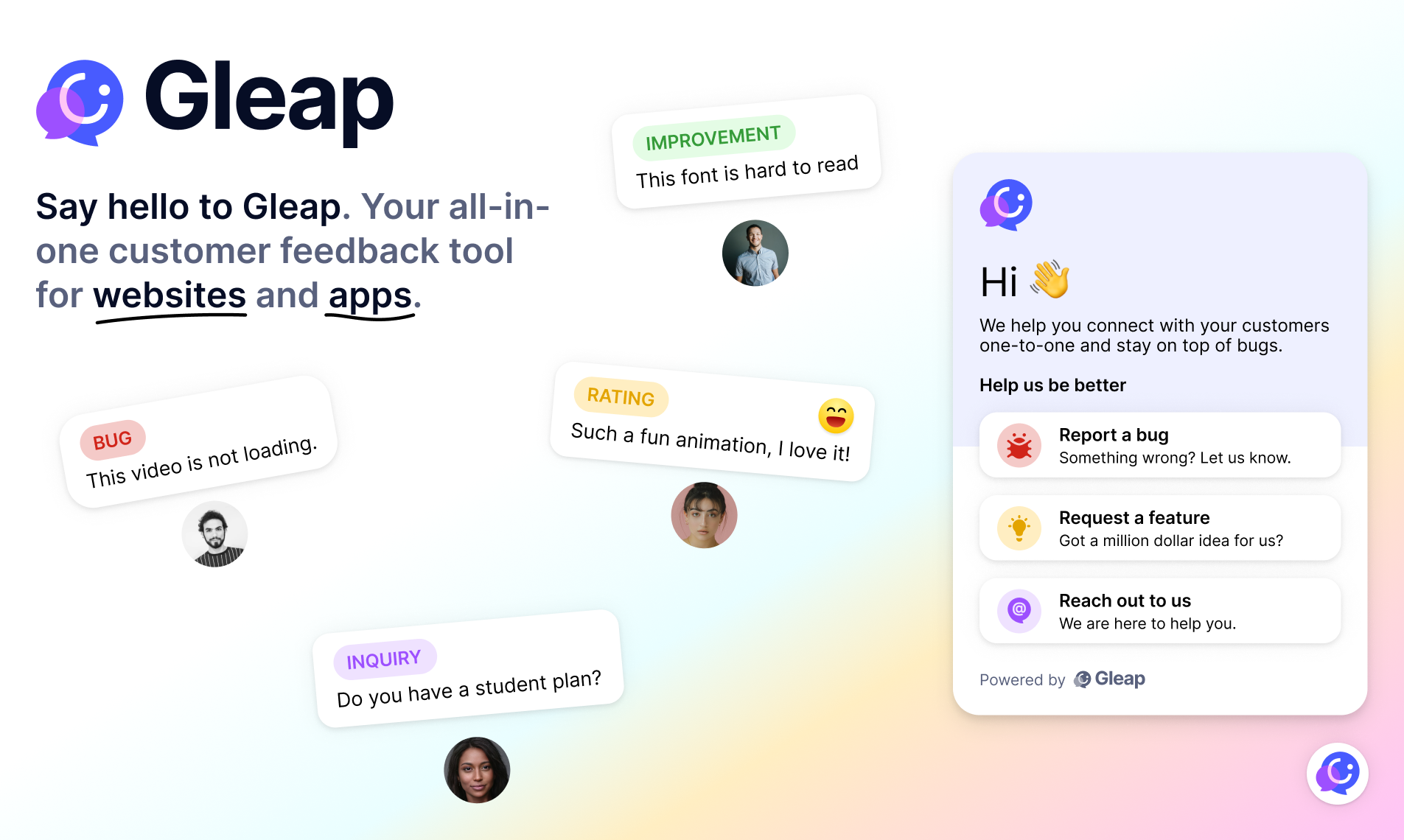
Add AI-native customer support, live chat, in-app bug reporting, a help center and surveys to your Android apps with Gleap. Gleap is an Intercom alternative for software teams that connects customer conversations and feedback with product development.
SDK documentation · Website · Plans and pricing
Checkout our documentation for full reference.
Open your project in your favorite IDE. (e.g. Android Studio). Open the build.gradle of your project.
Scroll down to the dependencies
dependencies {
...
}
Add the Gleap SDK to your dependencies
dependencies {
...

implementation group: 'io.gleap', name: 'gleap-android-sdk', version: '19.0.0'
}
Sync the gradle file to start the download of the library.
The Gleap SDK is almost installed successfully. Let's carry on with the initialization 🎉
Open your MainApplication
Import the Gleap SDK
Import the Gleap SDK by adding the following import below your other imports.
import io.gleap.Gleap;
Initialize the SDK
The last step is to initialize the Gleap SDK by adding the following Code to the onCreate method:
Gleap.initialize("YOUR_API_KEY", this);
(Your API key can be found in the project settings within Gleap)
Gleap projects are hosted in the EU by default. If your project lives in the US region, select the region before calling Gleap.initialize:
Gleap.getInstance().setRegion("us");
Gleap.initialize("YOUR_API_KEY", this);
setRegion accepts "eu" (default) or "us" (case-insensitive) and sets all regional hosts at once. Unknown values are ignored with a warning.
| Region | API url | WebSocket url | Realtime host |
|---|---|---|---|
eu (default) |
https://api.eu.gleap.ai |
wss://ws.eu.gleap.ai |
sockets.eu.gleap.ai |
us |
https://api.us.gleap.ai |
wss://ws.us.gleap.ai |
sockets.us.gleap.ai |
Order matters: call setRegion first, then Gleap.initialize. The manual setters (setApiUrl, setWSApiUrl, setRealtimeHost) are still available — a manual setter called after setRegion overrides that single host.
The static widget hosts are global and are not changed by the region: the messenger frame (messenger-app.gleap.io/appnew), banners and modals (outboundmedia.gleap.io) and SDK assets (sdk.gleap.io). Self-hosted setups can override them with setFrameUrl, setBannerUrl and setModalUrl.
With every ticket the SDK sends env data (device model, OS version, screen size, locale, battery and memory state, …), shown under the Env data tab in Gleap. To leave out individual keys, pass them to setEnvDataPropsToIgnore; to stop collecting env data entirely, use setDisableEnvData:
Gleap.getInstance().setEnvDataPropsToIgnore(new String[]{"deviceName", "batteryLevel"});
Gleap.getInstance().setDisableEnvData(true);
Both can be called at any time and apply to the next ticket. Each setEnvDataPropsToIgnore call replaces the previous list, an empty array resets it. setDisableEnvData(false) turns the collection back on.
The widget uses the colors set in the Gleap dashboard. To match your app's dark / light mode, enable "Adapt to dark / light mode" in the dashboard and set a color scheme:
Gleap.getInstance().setColorScheme("auto");
Gleap.getInstance().setColorScheme("dark", null, "#121212");
Until setColorScheme is called, the dashboard's color scheme applies. auto follows the app's night mode (including AppCompatDelegate.setDefaultNightMode) and switches live, light / dark force a scheme; any other value is treated as auto. Dark mode uses the dark colors set in the dashboard (header colors, UI color and background) and also the dark logo, header image and composer glow set there; without dark colors the widget keeps its normal colors. The optional background colors passed to setColorScheme override the dashboard's background in light / dark mode. Can be called before or after Gleap.initialize.
setColorScheme only takes effect when "Adapt to dark / light mode" is enabled in the dashboard. While it is disabled, the widget always keeps the dashboard colors, whatever scheme the app sets.
When "Authenticated conversation files" is enabled for your project, conversation files can only be opened by the identified user. Identify the user with their user hash (identity verification) as usual:
GleapSessionProperties props = new GleapSessionProperties("user-id", "Name", "email@example.com", "USER_HASH");
Gleap.getInstance().identifyUser("user-id", props);
The SDK then receives a short-lived file session (15 minutes), which it keeps in memory only (never on disk), passes to the widget and refreshes before it expires. clearIdentity revokes it.
Emails about protected files link to your app's URL with a gleapFile query parameter. If your app handles that URL (e.g. as an App Link), pass it to Gleap; after the user is identified, the SDK opens the file's conversation if the user may see it:
Uri link = getIntent().getData();
if (link != null) {
    Gleap.getInstance().openProtectedFileFromUrl(link.toString());
}
openProtectedFileFromUrl returns false when the URL has no valid gleapFile parameter. Keep the parameter through your app's login flow.
Releases are published to Maven Central (io.gleap:gleap-android-sdk) by GitHub Actions (.github/workflows/release.yml):
- Bump
VERSION_NAME(andVERSION_CODE) ingradle.propertiesand add a## X.Y.Zsection toCHANGELOG.md; merge tomaster. - Tag the merged commit with the plain version (no
v) and push the tag:git tag X.Y.Z && git push origin X.Y.Z
The workflow checks that the tag equals VERSION_NAME and is on master, runs the unit tests, publishes and releases the signed artifacts through the Central Portal (no manual step), waits until the POM is on repo1.maven.org and creates the GitHub release with the CHANGELOG.md section as notes. Running the workflow by hand with a version is a dry run: same checks, tests and signing, published only to the runner's local Maven repository.
Repository secrets:
| Secret | Value |
|---|---|
MAVEN_CENTRAL_USERNAME |
Central Portal user token username |
MAVEN_CENTRAL_PASSWORD |
Central Portal user token password |
SIGNING_KEY |
ASCII-armored private key (gpg --armor --export-secret-keys <key id>) |
SIGNING_KEY_ID |
Short (8 character) key id |
SIGNING_KEY_PASSWORD |
Passphrase of the key |
Publishing from a Mac still works with ./gradlew :gleap:publishAndReleaseToMavenCentral --no-configuration-cache (or :gleap:publishToMavenLocal to check the artifacts). It reads from ~/.gradle/gradle.properties:
mavenCentralUsername/mavenCentralPassword: the Central Portal user token, i.e. the values of the formerNEXUS_USERNAME/NEXUS_PASSWORD, which are no longer read.signing.keyId,signing.password,signing.secretKeyRingFile: unchanged, used whenever nosigningInMemoryKeyis set.
The empty io.gleap:gleap-okhttp-interceptor artifact is released from GleapSDK/OKHttpInterceptor, not from this repository.