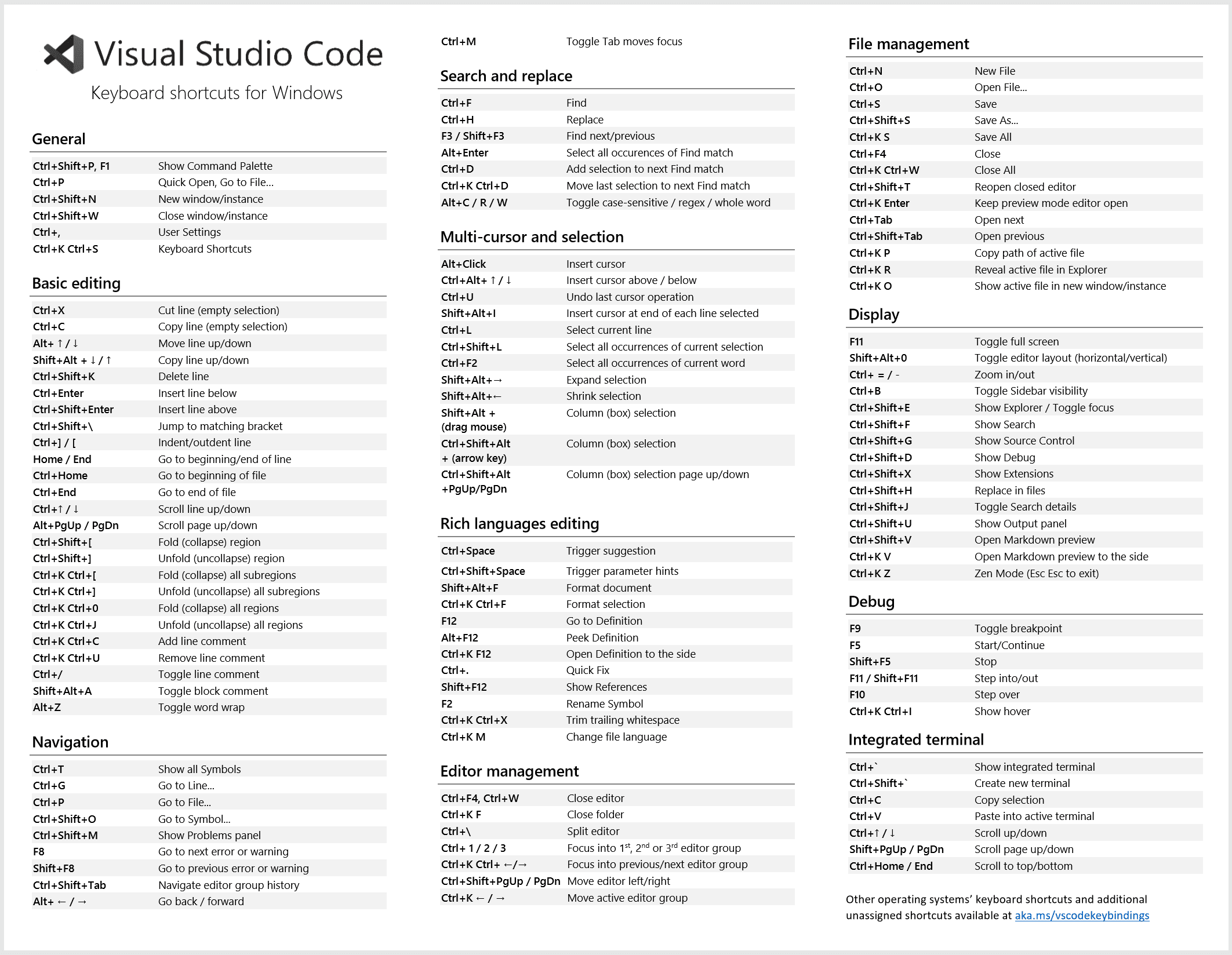
A key to be more productive with Visual Studio Code is to use the builtin keyboard shortcuts. You can view the full list of keyboard shortcuts by going to File > Preferences > Keyboard Shortcuts.
Note: Some of these shortcuts may differ based on the specific operating system or keyboard layout you're using (here for german layout).
Here you can view almost all keyboard shortcuts in one overview.
Here you can search and run all Commands. You can also map a command to a Keyboard shortcut here.
- Show Command Palette:
Windows/Linux:
Ctrl + Shift + PMacOS:Cmd + Shift + P
-
New window/instance: Windows/Linux:
Ctrl + Shift + NMacOS:Cmd + Shift + N -
Close editor: Windows/Linux:
Ctrl + WMacOS:Cmd + W -
Close window/instance: Windows/Linux:
Ctrl + Shift + WMacOS:Cmd + Shift + W -
Toggle Sidebar: Windows/Linux:
Ctrl + BMacOS:Cmd + B -
Close all open taps: Windows/Linux:
Ctrl + K + WMacOS:Cmd + K + W -
Fold {}: Windows/Linux:
Ctrl + Shift + ßMacOS:Cmd + Shift + ß -
Unfold {}: Windows/Linux:
Ctrl + Shift + ´MacOS:Cmd + Shift + ´ -
Split editor view: Windows/Linux:
Ctrl + ^MacOS:Cmd + ^ -
Zen Mode: Windows/Linux:
Ctrl + K + ZMacOS:Cmd + K + Z -
MarkDown Preview: Windows/Linux:
Ctrl + K + VMacOS:Cmd + K + V
-
Quick Open file from Workspace: Windows/Linux:
Ctrl + PMacOS:Cmd + P -
Next editor: Windows/Linux:
Ctrl + TabMacOS:Cmd + Tab -
Previous editor: Windows/Linux:
Ctrl + Shift + TabMacOS:Cmd + Shift + Tab -
Go back: Windows/Linux:
Alt + Left ArrowMacOS:Ctrl + Cmd + Left Arrow -
Go forward: Windows/Linux:
Alt + Right ArrowMacOS:Ctrl + Cmd + Right Arrow -
Global Find: Windows/Linux:
Ctrl + Shift + FMacOS:Cmd + Shift + F -
Show outline of file: Windows/Linux:
Ctrl + Shift + .MacOS:Cmd + Shift + . -
Go to specific Line: Windows/Linux:
Ctrl + GMacOS:Cmd + G
-
Cut Line: Windows/Linux:
Ctrl + XMacOS:Cmd + X -
Copy Line: Windows/Linux:
Ctrl + CMacOS:Cmd + C -
Highlight: Windows/Linux:
Shift + Left/Right ArrowMacOS:Shift + Left/Right Arrow -
Highlight word: Windows/Linux:
Ctrl + Shift + Left/Right ArrowMacOS:Cmd + Shift + Left/Right Arrow -
Highlight word and put multiple cursor to next same words: Windows/Linux:
Ctrl + DMacOS:Cmd + D -
Select all occurrences of current selection: Windows/Linux:
Ctrl + Shift + LMacOS:Cmd + Shift + L -
Insert Snippet: Windows/Linux:
Shift + Alt + JMacOS:Shift + Option + J -
Copy Line: Windows/Linux:
Shift + Alt + Up/Down ArrowMacOS:Shift + Option + Up/Down Arrow -
Add cursor above/below: Windows/Linux:
Ctrl + Alt + Up/DownMacOS:Ctrl + Option + Up/Down -
Undo last cursor operation: Windows/Linux:
Ctrl + UMacOS:Cmd + U -
Comment line: Windows/Linux:
Ctrl + #MacOS:Cmd + # -
Comment highlighted array out: Windows/Linux:
Shift + Alt + AMacOS:Shift + Option + A -
Multiple Line cursor: Windows/Linux:
Ctrl + Alt + Up/Down Arrowor hold Alt and CLICK MacOS:Cmd + Option + Up/Down Arrowor hold Option and CLICK -
Select current Line: Windows/Linux:
Ctrl + LMacOS:Cmd + L -
Move line up/down: Windows/Linux:
Alt + Up/Down ArrowMacOS:Option + Up/Down Arrow -
Delete line: Windows/Linux:
Ctrl + Shift + KMacOS:Cmd + Shift + K -
Insert line below: Windows/Linux:
Ctrl + EnterMacOS:Cmd + Enter -
Insert line above: Windows/Linux:
Ctrl + Shift + EnterMacOS:Cmd + Shift + Enter -
Format Text: Windows/Linux:
Shift + Alt + FMacOS:Shift + Option + F
by Philipp B.